• Home
  • MAC
  • Virtual Machines
    • VMware
    • VirtualBox
  • Windows
  • Linux
  • Downloads
    • ISO Files
      • Open Mamba ISO
      • AnduinOS ISO
      • Windows 7 ISO
      • Windows 11 ISO
    • macOS DMG
    • macOS ISO
    • macOS VMDK
    • VMware Workstation Pro
    • macOS Unlocker
    • DirectX 12
    • MSI Afterburner
    • Hyper-V Server 2019
  • Others
    • Android
    • Discord
    • iOS
    • Internet
GEEKrar
  • Home
  • MAC
  • Virtual Machines
    • VMware
    • VirtualBox
  • Windows
  • Linux
  • Downloads
    • ISO Files
      • Open Mamba ISO
      • AnduinOS ISO
      • Windows 7 ISO
      • Windows 11 ISO
    • macOS DMG
    • macOS ISO
    • macOS VMDK
    • VMware Workstation Pro
    • macOS Unlocker
    • DirectX 12
    • MSI Afterburner
    • Hyper-V Server 2019
  • Others
    • Android
    • Discord
    • iOS
    • Internet
No Result
View All Result
  • Home
  • MAC
  • Virtual Machines
    • VMware
    • VirtualBox
  • Windows
  • Linux
  • Downloads
    • ISO Files
      • Open Mamba ISO
      • AnduinOS ISO
      • Windows 7 ISO
      • Windows 11 ISO
    • macOS DMG
    • macOS ISO
    • macOS VMDK
    • VMware Workstation Pro
    • macOS Unlocker
    • DirectX 12
    • MSI Afterburner
    • Hyper-V Server 2019
  • Others
    • Android
    • Discord
    • iOS
    • Internet
No Result
View All Result
GEEKrar
No Result
View All Result
Home Internet

Zoom Not Working on Your Mac? Here Are 10 Ways to Fix It

Ruby Singh by Ruby Singh
April 18, 2022
in Internet, Mac
0
Zoom Not Working on Your Mac? Here Are 10 Ways to Fix It
21
VIEWS
Share on TwitterShare on Facebook

When you’ve got an important Zoom call coming up, the last thing you want is problems getting it to work. Especially if it’s something like a job interview. If you find yourself in that position, keep calm and try out some of these potential fixes.

Table of Contents

  • 1. Download the Zoom client
  • 2. Give Zoom permission to run
  • 3. Identify and close apps using the Mac camera or microphone
  • 4. Check your internet connection
  • 5. Spot VPN interference
  • 6. Update your Zoom
  • 7. Check if the Zoom server is down
  • 8. Close apps that take up too much power
  • 9. Restart your Mac
  • 10. Reinstall Zoom
  • Conclusion

1. Download the Zoom client

While it’s possible to use Zoom through your browser, there are several advantages to downloading the Zoom client directly on your Mac. Not only will you have access to more features, but you’ll also be able to isolate problems with your Zoom app faster. You can download the most recent client for your Mac through the Zoom website.

2. Give Zoom permission to run

Once you’ve installed the Zoom client successfully, it needs various permissions from your Mac to work. For example, Zoom video conferencing requires that at least your camera and microphone are accessible. Here’s how to give Zoom the necessary permissions to run on your Mac.

First, give Zoom access to your camera. To do this, click the Apple icon > System Preferences. Next, select Security and Privacy > Privacy > Camera. Then, check the box next to the Zoom logo. Below the Camera button, select Microphone and repeat the previous step.

Second, under Privacy, select Files and Folders. Scroll down to find the Zoom logo and check the box next to the Downloads Folder. This will enable you to share and save files to your Mac.

Lastly, click the Screen Recording button under Files and Folders. Check the box next to the Zoom logo to let your Mac share your screen during your meetings.

3. Identify and close apps using the Mac camera or microphone

If you can launch Zoom but can’t seem to open your Mac camera or microphone, you may simply need to close the other apps that are using them. Alternatively, try out some troubleshooting methods to fix your Mac camera or microphone.

4. Check your internet connection

Zoom, like any video conferencing app, needs to be connected to the internet to work. If it’s not, you can’t make any calls. Check your internet is actually connected by opening a web browser and navigating to a few different web pages.

5. Spot VPN interference

There are tons of advantages to using a VPN. However, difficulty accessing Zoom is not one of them. While many corporate accounts require VPNs for remote workers, they can significantly affect the video calling experience. Zoom even recommends turning off your VPN during meetings if it’s not absolutely necessary.

For more, VPN-related content do check out internetetsecurite and privacyenbescherming.

6. Update your Zoom
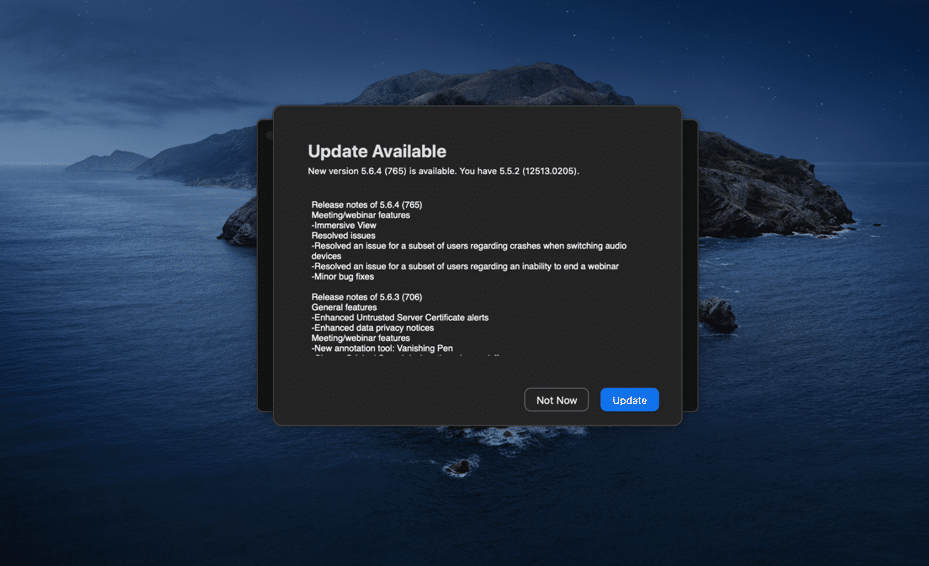
Zoom app updates help optimize your video call experience by removing bugs, improving speed, enhancing security features and more. To update your Zoom app, launch Zoom and click zoom.us. Then click Check for Updates and Update to confirm. If the update is critical, Zoom may not let you use the app unless you do so immediately.

7. Check if the Zoom server is down

Though rare, there are times that the Zoom app undergoes maintenance or emergency updates. While there’s little that you can do in these situations, it’s good to know that it’s not you, it’s Zoom.
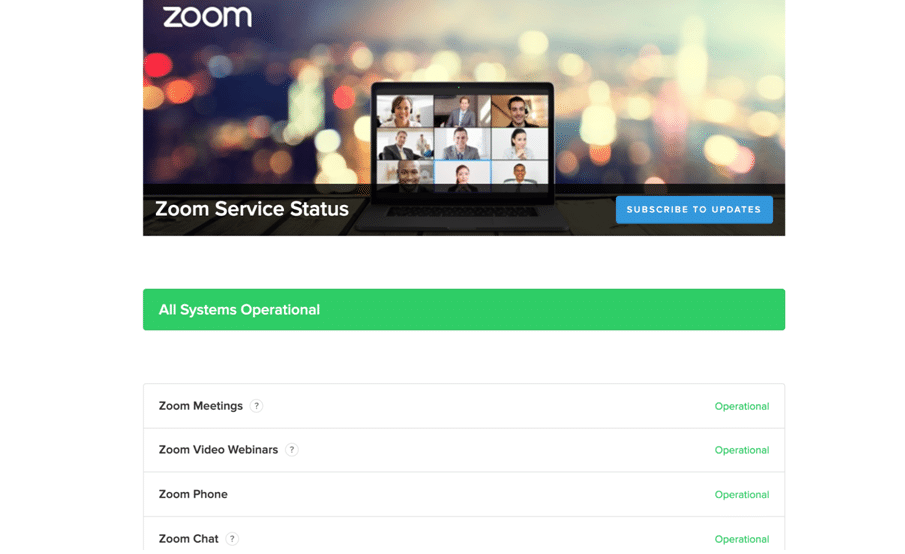
Should the server be down, you have the option to either try a different meeting platform or wait until Zoom resolves the problem. To check the Zoom server state, take a look at the Zoom status page.

8. Close apps that take up too much power

When a Mac is over capacity, apps like Zoom have trouble performing optimally. Some of the most common reasons for high CPU usage include video editing software or spreadsheets running tons of data in the background.

To improve your video conferencing experience, identify which apps are using most of your CPU capacity and close them. Find the apps that take too much of your Mac’s processing power by checking your Activity Monitor.

Press the command button and spacebar at the same time to open your Mac spotlight. Next, type Activity Monitor and press return. Then, close the applications that show a significant amount of CPU usage.

9. Restart your Mac

There’s an age-old IT support quote that everyone has heard at least once: “Have you tried turning it off and on?” When it comes to Zoom, restarting your Mac can resolve a variety of software problems or hardware errors, all at once. To restart your Mac, all you have to do is click the Apple icon and select Restart.

10. Reinstall Zoom

When all else fails, the solution to getting your Zoom working again may just be reinstalling the app. There are two parts to this: uninstalling the old version of your Zoom app and installing an updated version.

First, open your Zoom app and click zoom.us. Then, select Uninstall zoom and continue with the instructions. Next, go to the Zoom download page and download the latest version of the app for your Mac. Install it as normal.

Conclusion

Zoom has quickly become an indispensable tool for many remote workers and companies everywhere. When it’s not working, it can be a real pain. But by keeping your Zoom app up to date and following the guidance in this article, you can hopefully avoid any annoying issues when joining video calls.


Previous Post

A Brand New Way to Create macOS Bootable USB on Windows PC

Next Post

How An Automation Data System Contributes To Increase The Efficiency Of Employees

Ruby Singh

Ruby Singh

Next Post
How An Automation Data System Contributes To Increase The Efficiency Of Employees

How An Automation Data System Contributes To Increase The Efficiency Of Employees

Leave a Reply Cancel reply

Your email address will not be published. Required fields are marked *

No Result
View All Result

Recent Articles

  • Download Tiny10 ISO for Windows 10 (Complete Guide)
  • Download VMware Workstation Pro 25H2 (Windows | Linux): Direct Downloads
  • Download macOS Unlocker for VMware Workstation Pro 25H2 | Old Versions Available
  • Download Tiny11 25H2 ISO for Windows 11: Older Verions Available
  • How to Enable Intel VT-x or AMD-V On BIOS or UEFI Firmware
  • How to Dual Boot macOS Catalina & Windows 10 on PC
  • How to Install VMware Tools on Kali Linux
  • How to Install Kali Linux 2020 on Laptop PC
  • How to Create Bootable USB for Kali Linux on Windows
  • How to Dual Boot Kali Linux with Windows 10
Facebook Twitter Youtube

Browse by Category

  • Android (16)
  • Discord (4)
  • Downloads (17)
  • Featured (8)
  • Internet (155)
  • iOS (17)
  • Linux (10)
  • Mac (153)
  • Virtual Machine (31)
  • VirtualBox (81)
  • VMware (67)
  • Windows (82)

Downloads

Download macOS DMG
Download macOS ISO
Download macOS VMDK
Download Windows ISO

GEEKrar

We are a team of skilled writers, editors and tech enthusiasts that help you how to get tech into work, pros and cons, explain hows and whys, hacks, and fixes of new modern tech.

© 2025 geekRAR.com

We use cookies on our website to give you the most relevant experience by remembering your preferences and repeat visits. By clicking “Accept”, you consent to the use of ALL the cookies.
Do not sell my personal information.
Cookie settingsACCEPT
Manage consent

Privacy Overview

This website uses cookies to improve your experience while you navigate through the website. Out of these, the cookies that are categorized as necessary are stored on your browser as they are essential for the working of basic functionalities of the website. We also use third-party cookies that help us analyze and understand how you use this website. These cookies will be stored in your browser only with your consent. You also have the option to opt-out of these cookies. But opting out of some of these cookies may affect your browsing experience.
Necessary
Always Enabled
Necessary cookies are absolutely essential for the website to function properly. This category only includes cookies that ensures basic functionalities and security features of the website. These cookies do not store any personal information.
Non-necessary
Any cookies that may not be particularly necessary for the website to function and is used specifically to collect user personal data via analytics, ads, other embedded contents are termed as non-necessary cookies. It is mandatory to procure user consent prior to running these cookies on your website.
SAVE & ACCEPT
No Result
View All Result

© 2025 geekRAR.com

Go to mobile version