• Home
  • MAC
  • Virtual Machines
    • VMware
    • VirtualBox
  • Windows
  • Linux
  • Downloads
    • ISO Files
      • Open Mamba ISO
      • AnduinOS ISO
      • Windows 7 ISO
      • Windows 11 ISO
    • macOS DMG
    • macOS ISO
    • macOS VMDK
    • VMware Workstation Pro
    • macOS Unlocker
    • DirectX 12
    • MSI Afterburner
    • Hyper-V Server 2019
  • Others
    • Android
    • Discord
    • iOS
    • Internet
GEEKrar
  • Home
  • MAC
  • Virtual Machines
    • VMware
    • VirtualBox
  • Windows
  • Linux
  • Downloads
    • ISO Files
      • Open Mamba ISO
      • AnduinOS ISO
      • Windows 7 ISO
      • Windows 11 ISO
    • macOS DMG
    • macOS ISO
    • macOS VMDK
    • VMware Workstation Pro
    • macOS Unlocker
    • DirectX 12
    • MSI Afterburner
    • Hyper-V Server 2019
  • Others
    • Android
    • Discord
    • iOS
    • Internet
No Result
View All Result
  • Home
  • MAC
  • Virtual Machines
    • VMware
    • VirtualBox
  • Windows
  • Linux
  • Downloads
    • ISO Files
      • Open Mamba ISO
      • AnduinOS ISO
      • Windows 7 ISO
      • Windows 11 ISO
    • macOS DMG
    • macOS ISO
    • macOS VMDK
    • VMware Workstation Pro
    • macOS Unlocker
    • DirectX 12
    • MSI Afterburner
    • Hyper-V Server 2019
  • Others
    • Android
    • Discord
    • iOS
    • Internet
No Result
View All Result
GEEKrar
No Result
View All Result
Home VirtualBox

How to Install Linux Mint Cinnamon VirtualBox (2025) | Step by Step Guide

Ruby Singh by Ruby Singh
July 10, 2025
in VirtualBox, Virtual Machine
0
How to Install Linux Mint Cinnamon VirtualBox (2025) | Step by Step Guide
43
SHARES
614
VIEWS
Share on TwitterShare on Facebook

In this article, we will learn How to Install Linux Mint Cinnamon VirtualBox on a Windows 10 PC. There are many good reasons to use Linux Mint as your operating system, namely that it is free and open source.

Linux Mint is a free and open-source distribution that you can install on your computer’s hard drive or run from a USB drive. It is based on Ubuntu and Debian with an emphasis on usability and the MATE desktop environment which is the continuation of GNOME 2.

Table of Contents

  • Install Linux Mint Cinnamon VirtualBox (2022) | Step by Step Guide
    • Minimum Requirements
    • 1. Preparing the Virtual Machine
    • 2. Customize the Virtual Machine
    • 3. Starting the Virtual Machine
  • Conclusion

Install Linux Mint Cinnamon VirtualBox (2022) | Step by Step Guide

This tutorial will show you how to install Linux Mint on VirtualBox on a Windows 10 PC.

Minimum Requirements

RAM: 2GB (4GB Recommended)
20 GB Free Disk Space (100GB Recommended)
CPU: 2 Cores
Linux Mint ISO

1. Preparing the Virtual Machine

Step 1: Open LinuxMint.com, and click on the download link. Select the latest version Linux Mint 20.3 and download the ISO File. The file is around 2.1 GB.

Step 2: Once downloaded, download and install Virtualbox on your Windows PC. Here is a guide that you can use: How To Install VirtualBox 6.1 On Windows 10

Step 3: Install the Virtualbox Extension Package. Use this guide: How To Install VirtualBox 6.1 On Windows 10

Step 4: Open Virtualbox and click add a new virtual machine. Set the following parameters and click Next.

Name: Linux Mint
Type: Linux
Version: Ubuntu (64 bit)

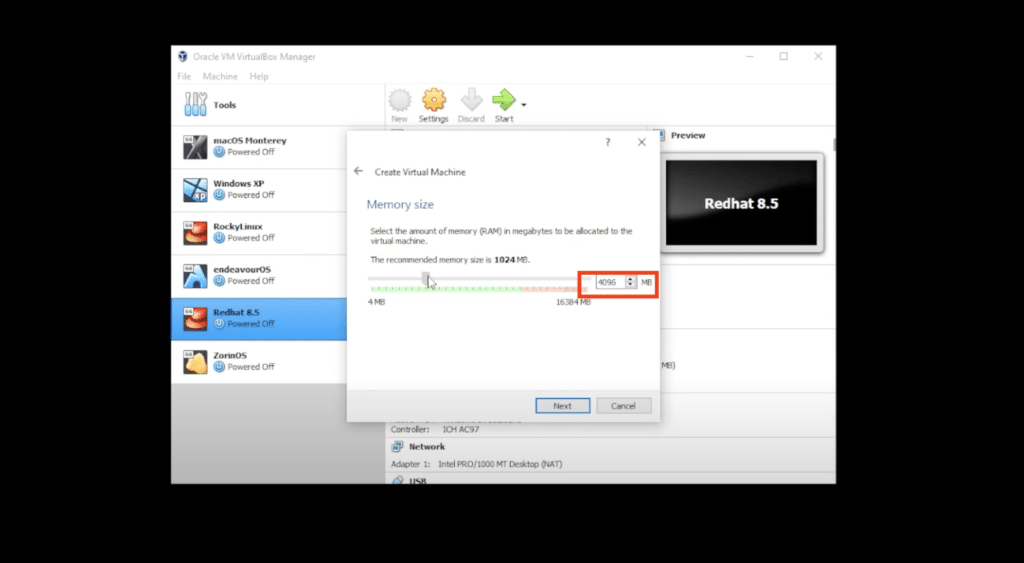
Step 5: In the memory size, select 4GB and click Next.
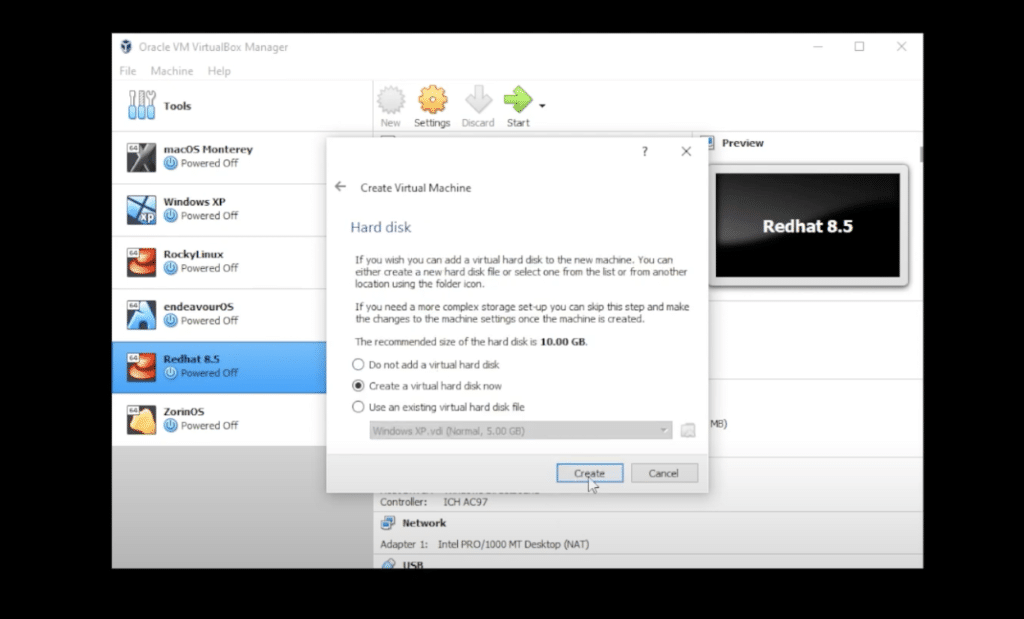
Step 6: Select Create a Virtual Hark Disk File and click Create.
Step 7: Select VDI (Virtual Disk Image) and click Next.
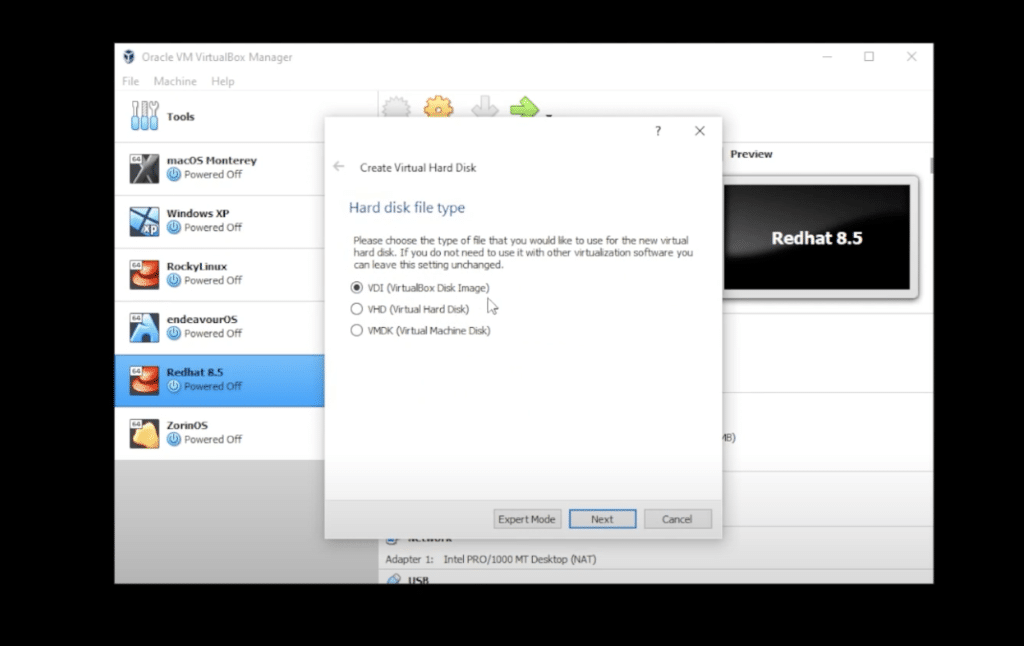
Step 8: Select dynamically allocated and click Next.
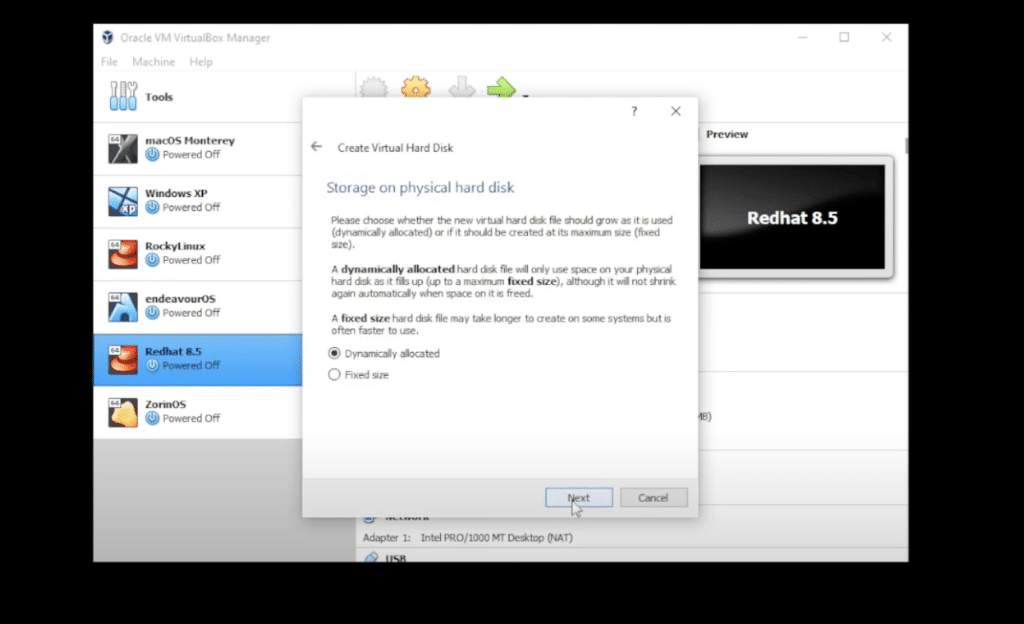
Step 9: For the hard disk space, select 60GB, and then click on Create.
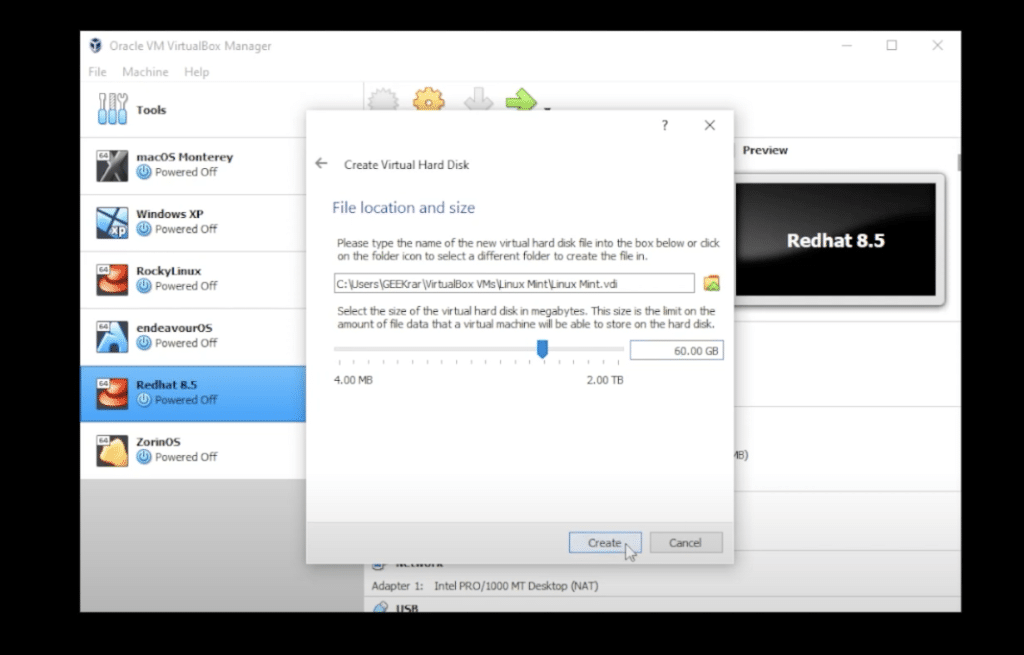
2. Customize the Virtual Machine

Step 10: Click on the Settings button, and go to the General tab under Advanced. Under shared clipboard and DragNDrop select Bidirectional.

Step 11: Then under System, go to the Processors tab and select 4.
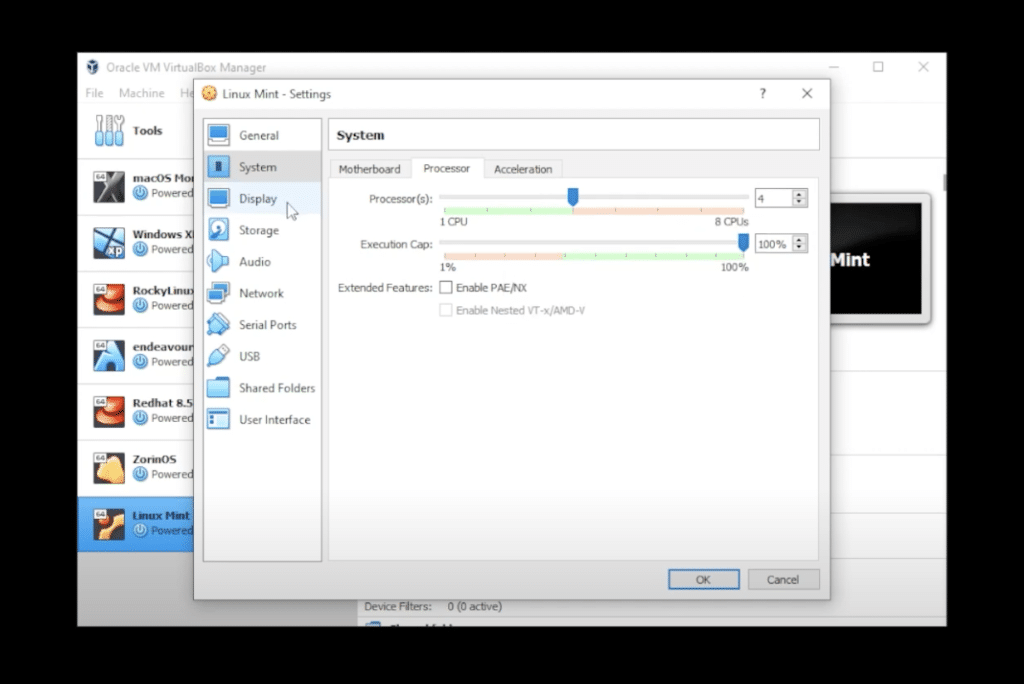
Step 12: Go to Display and select 128MB.
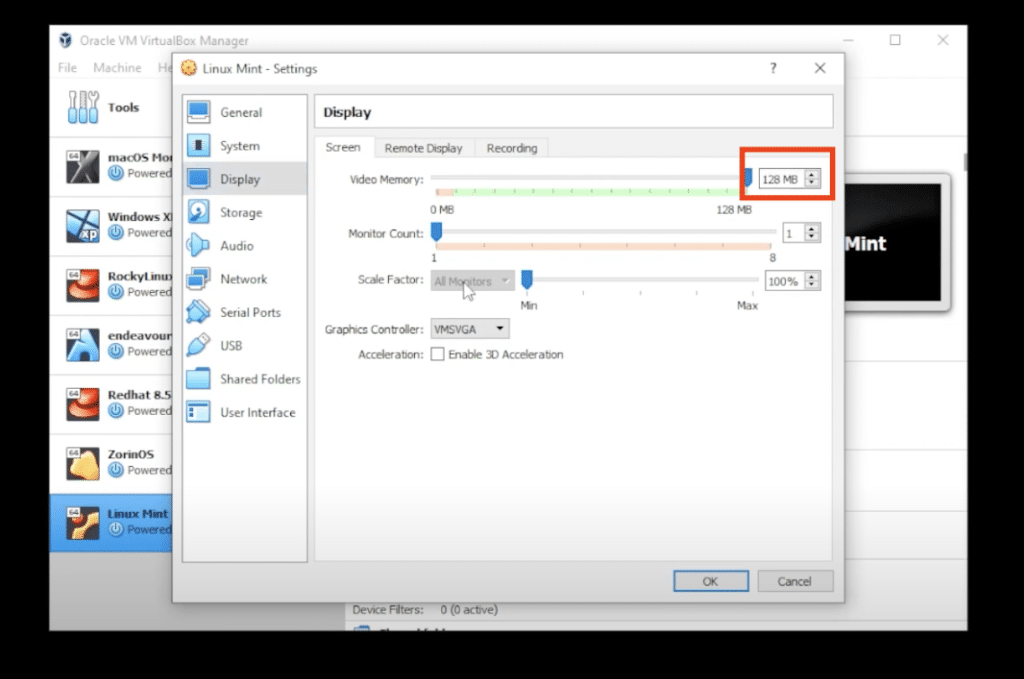
Step 13: Click on Storage and inside Storage, you want to select the empty disk over here, then click on the little disk on the right-hand side. Choose a disk file and this is where we need to go to our Downloads folder, where download the ISO image file, which is right over here then click on open.
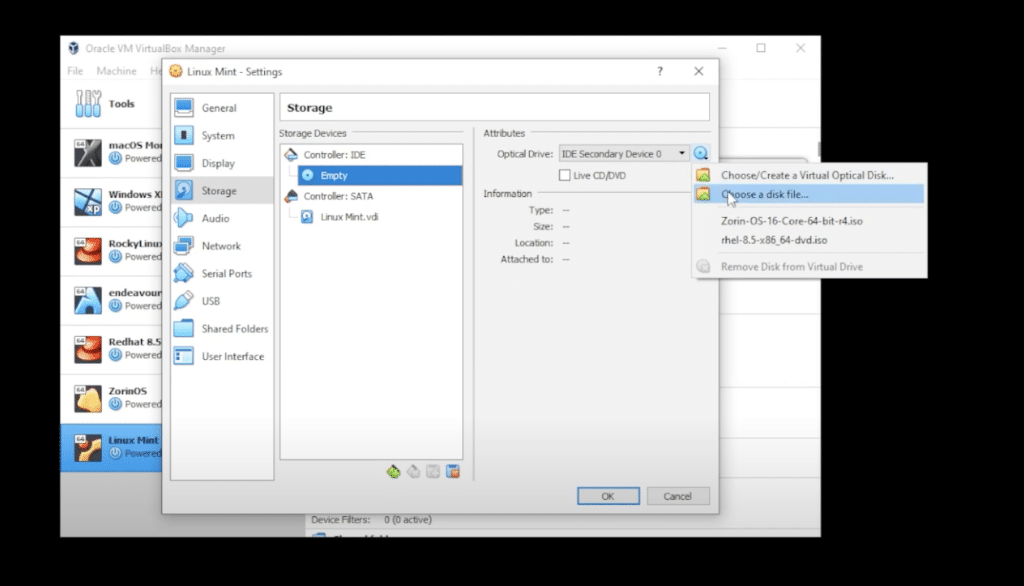
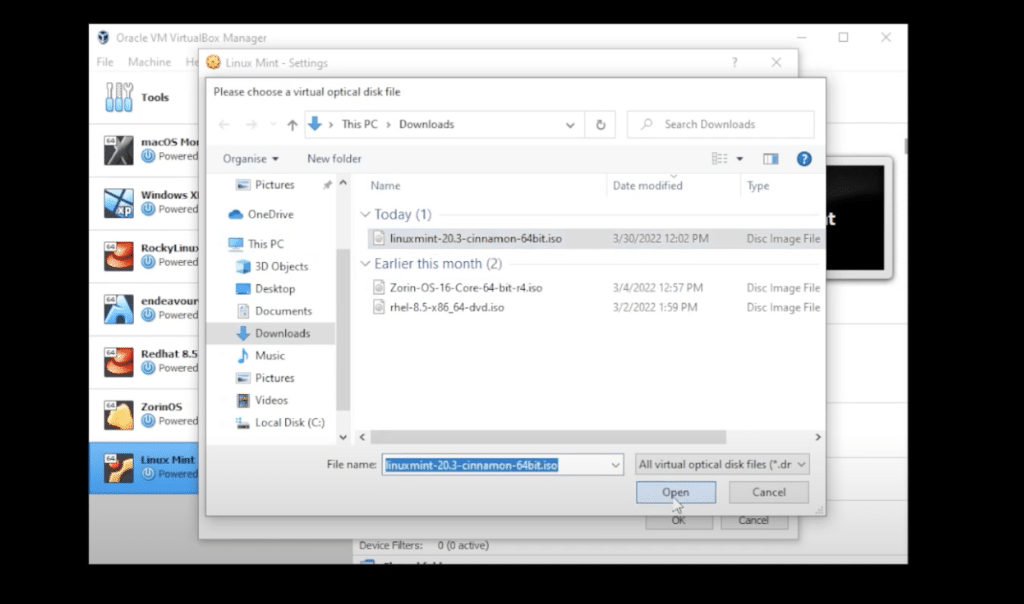
Step 14: When we’re done doing the installation, you can just right-click on it and remove the attachment. So I’m going to leave everything else as is the rest of the options you can select and change and modify later on. Now just click on the ok button.

3. Starting the Virtual Machine

Step 15: Go to VirtualBox Manager and make sure that Linux Mint is selected and then click on the Start button.
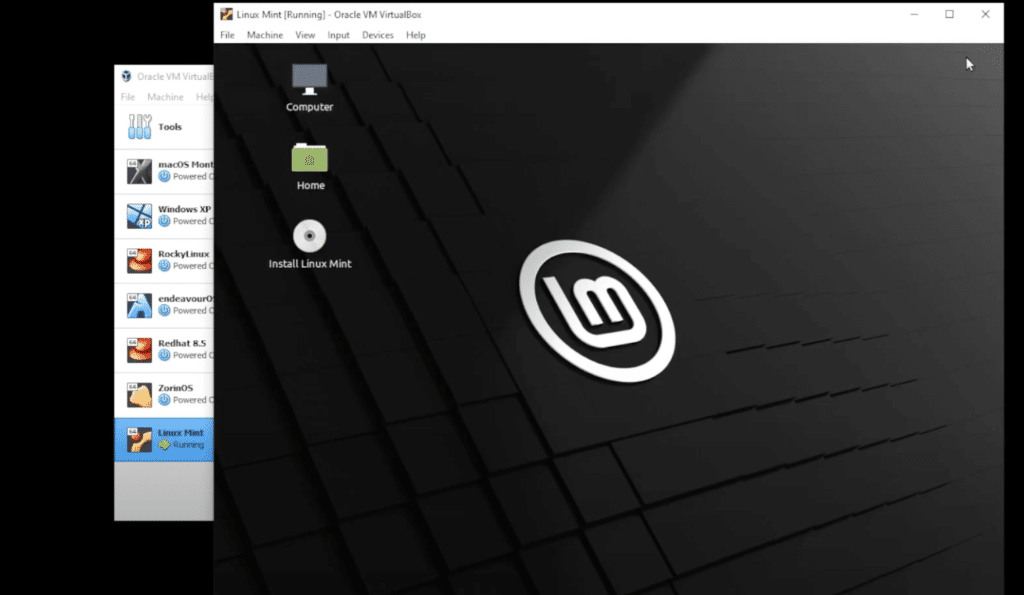
Step 16: This is not an installed version, this is just a live version. What we want to do is actually double-click on the disk to install the operating system in a virtual drive.
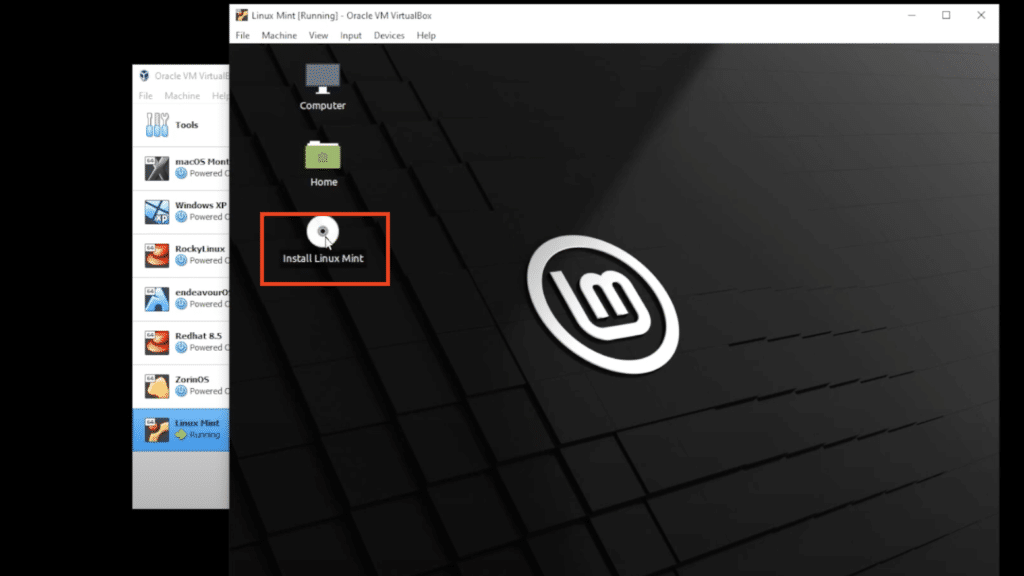
Step 17: Continue with the installation wizard. You can choose the default setting and proceed with the final installation.

Step 18: Click on Continue, and now it’s going to copy over the files and install them. This might take a few minutes.
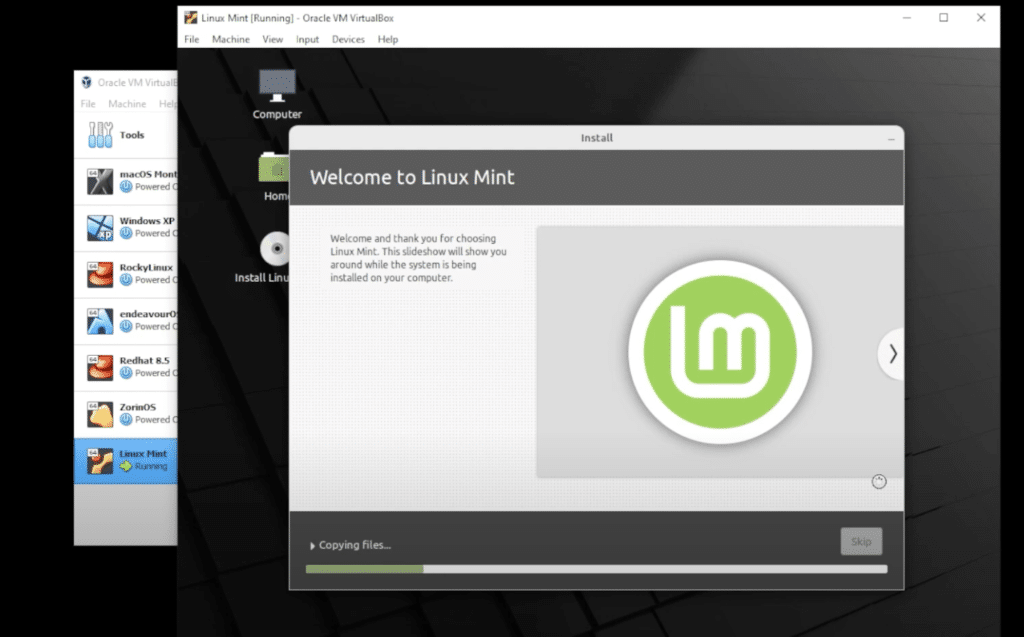
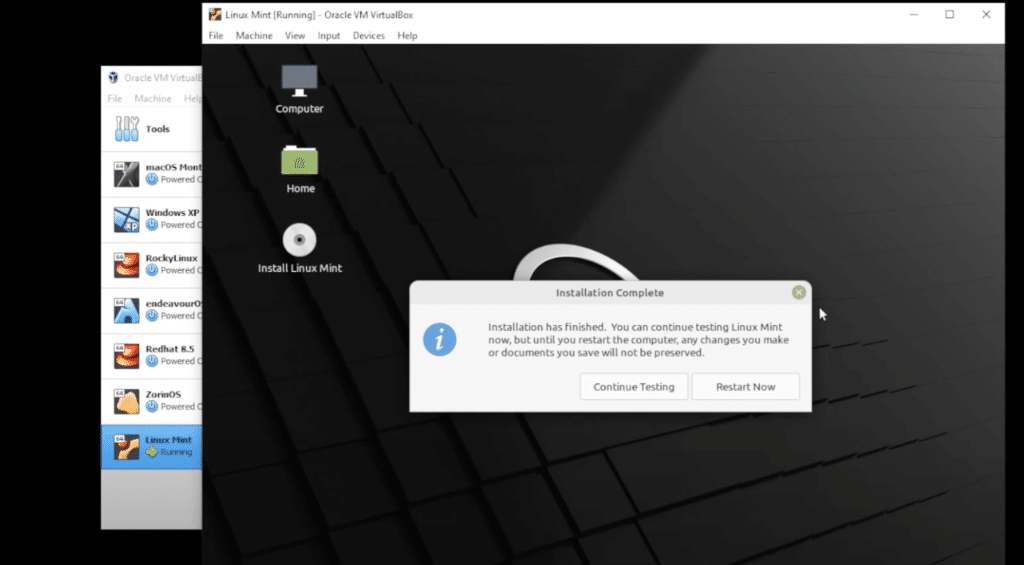
Step 19: Once the installation is complete and is ready to restart. Shut down your virtual machine completely.
Step 20: Select the virtual machine over here on the left-hand side, click on Settings, and then go into storage.

Step 21: Click on X in the corner, and start the machine again. It will ask for your password to log in to your Linux Mint.
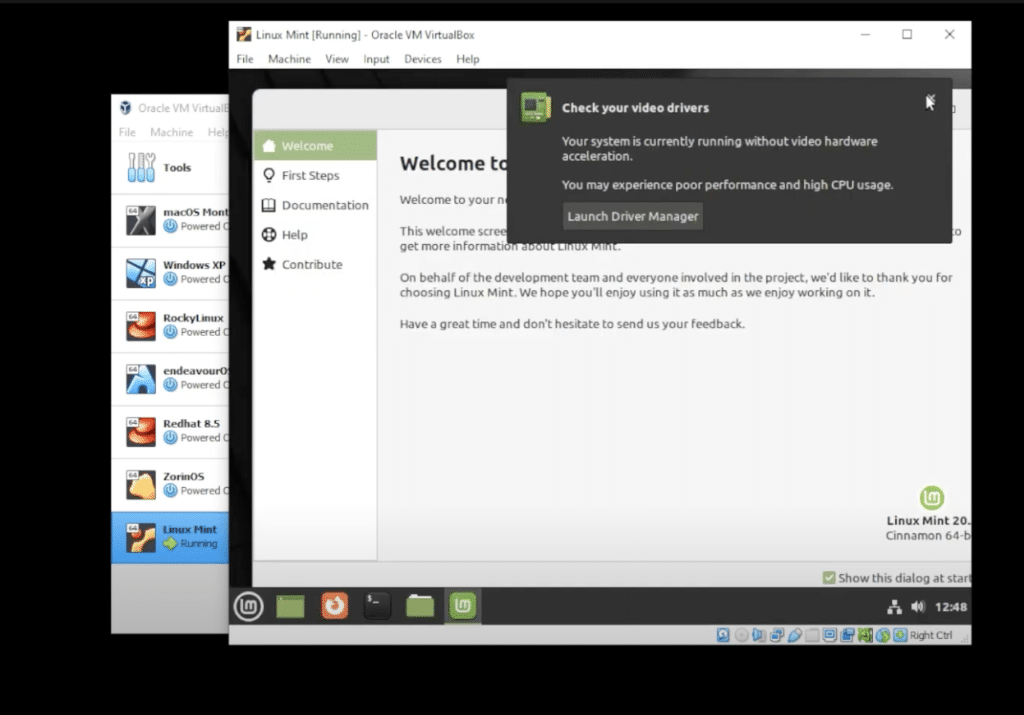
Step 22: You can go through all the steps if you’re not familiar with the operating system and it will show you all the features of the operating system.

Step 23: Now install this guest edition CD image and what it’s going to allow us to do is full screen and it will give us a proper aspect ratio. Also, it allows you to copy and paste from your desktop into your virtual machine and drag and drop files so all these will be enabled once you install the guest edition CD image.
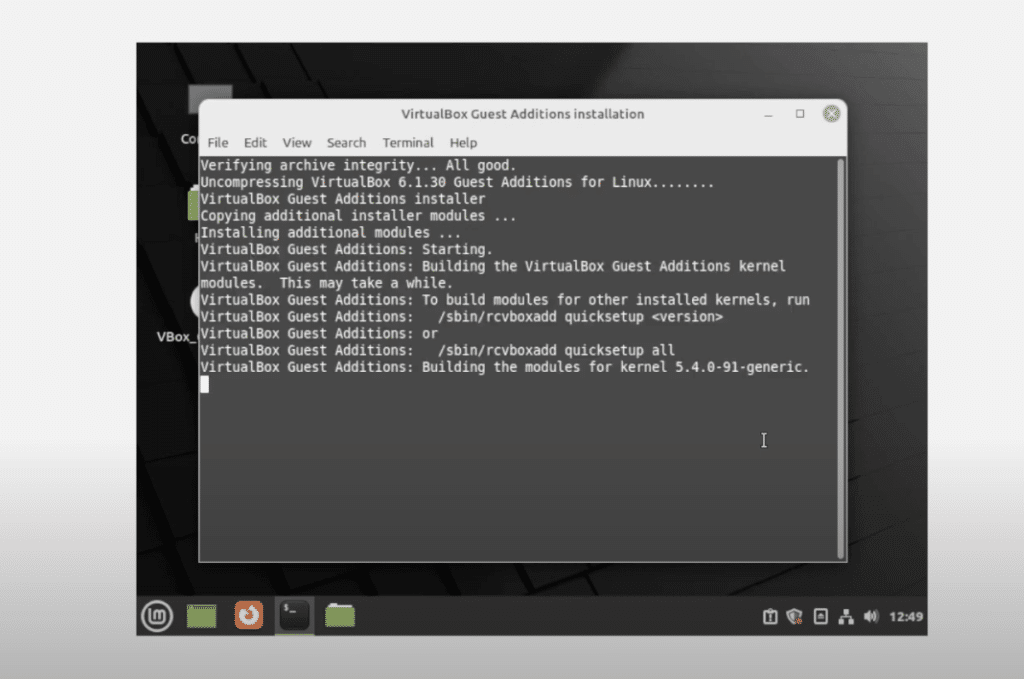
Step 24: Click enter key on our keyboard and it’s going to close what we want to do next is just restart our virtual machine.

Congratulations. You have successfully installed Linux Mint Cinnamon on VirtualBox on Windows 10 PC.

Conclusion

So Linux Mint has been installed inside VirtualBox on a Windows 10 PC. I hope you found this article useful.

You can watch a detailed video tutorial below –
Previous Post

Elmedia Player Review: The Best Video Player for Mac and Firestick Casting Solution

Next Post

How to Install macOS Big Sur in VirtualBox Windows 2025 (New Easy Method)

Ruby Singh

Ruby Singh

Next Post
Install macOS Big Sur in VirtualBox Windows

How to Install macOS Big Sur in VirtualBox Windows 2025 (New Easy Method)

Leave a Reply Cancel reply

Your email address will not be published. Required fields are marked *

No Result
View All Result

Recent Articles

  • Best Way to Download macOS Big Sur ISO Image (Latest Version: 11.7.11)
  • Download macOS Big Sur DMG File (Latest Version: 11.7.11)
  • macOS Big Sur Download VMDK File | (Latest Version: 11.7.11)
  • Download macOS Tahoe VMDK File for VMware – Latest Version 26.4
  • Download macOS Tahoe DMG: Direct Download Links
  • Download macOS Tahoe ISO for VirtualBox and VMware: Direct Download
  • Download macOS Sequoia ISO file (Latest Version: 15.7.4)
  • Download macOS Sequoia VMDK File (Latest Version: 15.7.4)
  • Download macOS Sequoia DMG file (Latest Version: 15.7.4)
  • Download macOS Sonoma DMG File (Latest Version: 14.8.4)
Facebook Twitter Youtube

Browse by Category

  • Android (15)
  • Discord (4)
  • Downloads (17)
  • Featured (8)
  • Internet (73)
  • iOS (16)
  • Linux (10)
  • Mac (150)
  • Virtual Machine (31)
  • VirtualBox (81)
  • VMware (67)
  • Windows (82)

Downloads

Download macOS DMG
Download macOS ISO
Download macOS VMDK
Download Windows ISO

GEEKrar

We are a team of skilled writers, editors and tech enthusiasts that help you how to get tech into work, pros and cons, explain hows and whys, hacks, and fixes of new modern tech.

© 2026 geekRAR.com

We use cookies on our website to give you the most relevant experience by remembering your preferences and repeat visits. By clicking “Accept”, you consent to the use of ALL the cookies.
Do not sell my personal information.
Cookie settingsACCEPT
Manage consent

Privacy Overview

This website uses cookies to improve your experience while you navigate through the website. Out of these, the cookies that are categorized as necessary are stored on your browser as they are essential for the working of basic functionalities of the website. We also use third-party cookies that help us analyze and understand how you use this website. These cookies will be stored in your browser only with your consent. You also have the option to opt-out of these cookies. But opting out of some of these cookies may affect your browsing experience.
Necessary
Always Enabled
Necessary cookies are absolutely essential for the website to function properly. This category only includes cookies that ensures basic functionalities and security features of the website. These cookies do not store any personal information.
Non-necessary
Any cookies that may not be particularly necessary for the website to function and is used specifically to collect user personal data via analytics, ads, other embedded contents are termed as non-necessary cookies. It is mandatory to procure user consent prior to running these cookies on your website.
SAVE & ACCEPT
No Result
View All Result

© 2026 geekRAR.com

Go to mobile version