

The latest macOS Big Sur is an amazing operating system that completely changes the way OS X used to be. With macOS 11 Big Sur comes a complete rehash of the old macOS 10.x, giving Mac users powerful features to play around with. Nearly every aspect of the operating system has been improved. Of course, Catalina, Mojave, and other versions are great, too, but what if you need to create a bootable USB to install macOS and you only have access to a Windows PC? What do you do then? After all, DMG files aren’t native to Windows, so what kind of tools will you need?
In the past, TransMac is the only software to create bootable macOS USB from dmg file on Windows PC. However, it does not work sometimes as well as some bulky workarounds to get past the problem of creating a bootable USB drive on Windows using a DMG file. That is no longer the case. With the introduction of UUByte DMG Editor for Windows, those problems are a thing of the past. There is now a brand new way to create macOS bootable USB drives on Windows PC using DMG source files for Big Sur and all older macOS versions.
Table of Contents
What is UUByte DMG Editor?
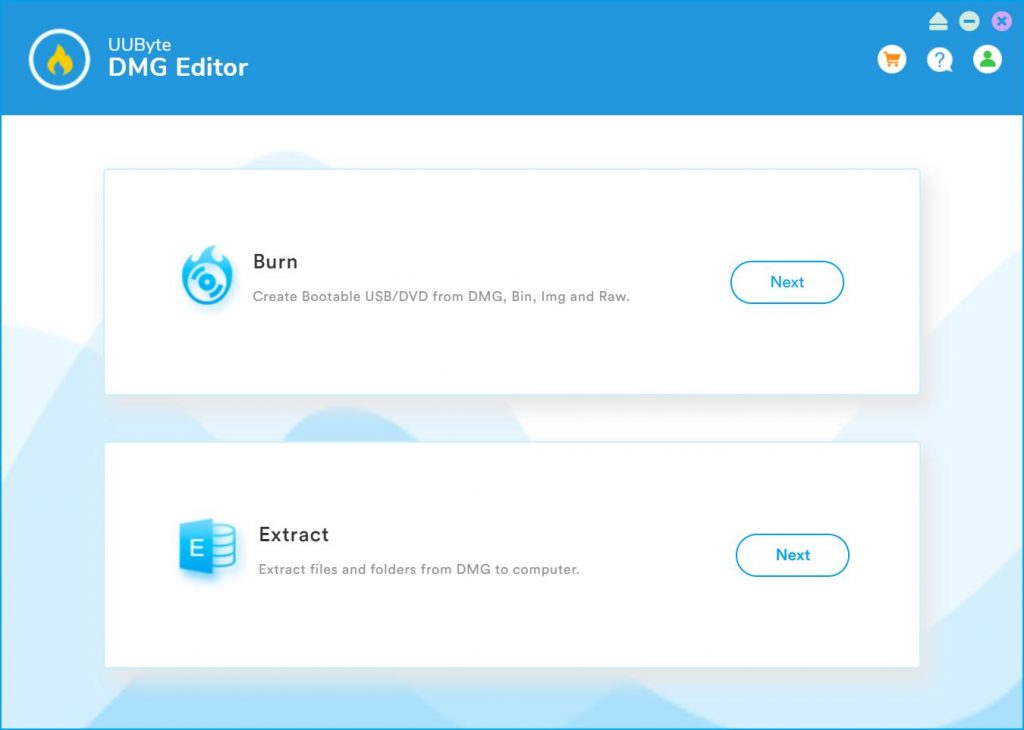
Versatile software to manage DMG files on Windows and Mac: that’s the basic description of this utility but it does a whole lot more. Apart from being able to burn DMG to USB to create bootable media for macOS installations, it can also help you open and extract DMG files.
One of the most appealing aspects of this software is the fact that it performs advanced functions but can be used by new users with no technical expertise. The UI is extremely intuitive and simple, with no confusing options or extras to distract you from the job.
The layout is as clean as possible, and you’ll see the two main Burn and Extract functions as soon as you launch the software. Based on what you want to do (open and extract, or burn to USB), click that option and go to the inside page, where you will see various sections pertaining to that operation.
Key Features of UUByte DMG Editor Explained
Let’s look at the key features and how they can help make your work easier:
Open DMG: Since DMG is not native to Windows, you will normally need a third-party application to unzip and extract the contents. With UUByte DMG Editor, just choose the Extract option, then load the file into the software to open and view the contents. The amount of time this will save you is significant. You can then manipulate these files using the software, which brings us to the next feature.
Extract DMG: Once you have the DMG loaded inside the application, you can select all files or specific files to extract to another location on your hard drive or portable USB drive. Select whatever you need and hit the Extract button, then save the files to a location of your choosing. That’s it!
Burn DMG: This is the most important function of UUByte DMG Editor so we’ll explain the process in greater detail…
How to Create Bootable macOS USB on PC with DMG Editor
Step 1: Download UUByte DMG Editor from this link (https://www.uubyte.com/dmg-editor.html). After that, install and launch the software on your Windows PC, click the Burn option on the first page.
Step 2: Inside, you’ll see two sections: next to the first field, click the Browse button to select and import the DMG file. Note: The tool supports several other disk image formats and OS images as well, including IMG, ISO, ZIP, BIN, BZ2, SDCard, and several others.
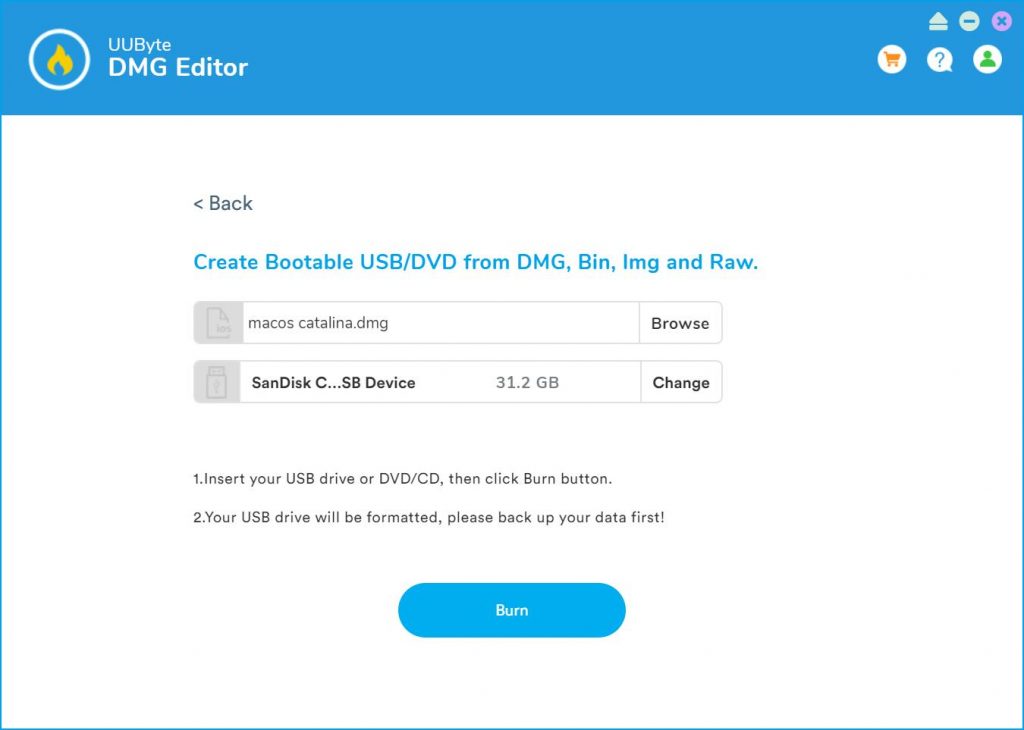
Step 3: Right below the file field, you’ll see your USB drive displayed. To choose a different one, click Change and select the one on which you want to create the bootable media.
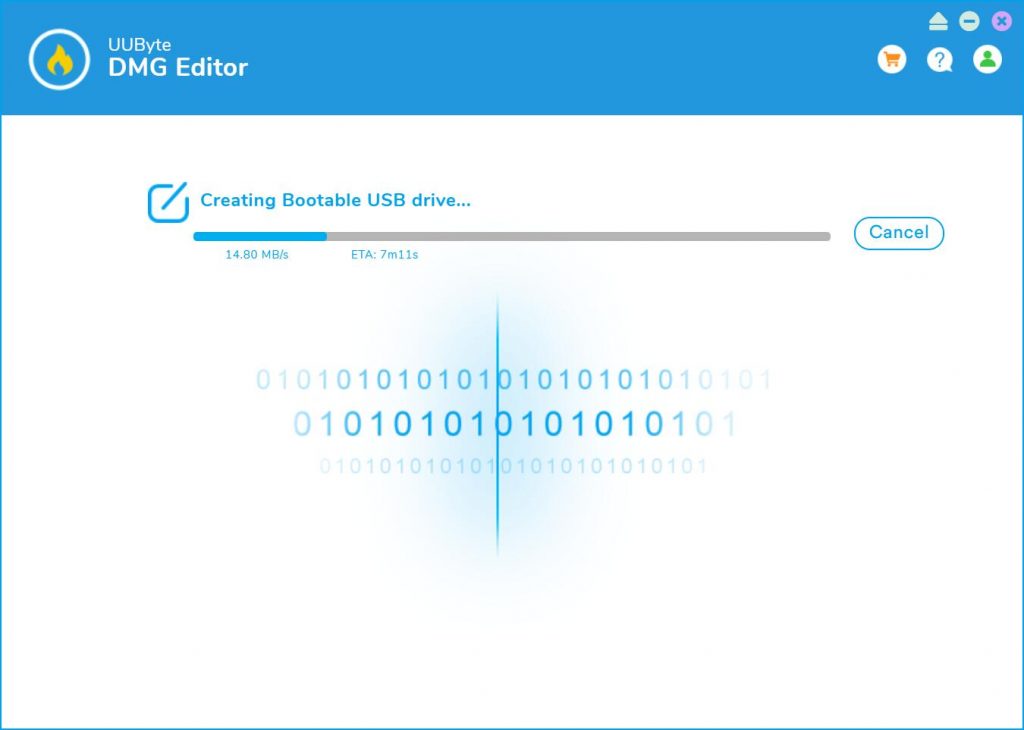
Step 4: You can now rename the volume label in the section below that. Finally, hit Burn and wait for your bootable USB to be prepared. You will see a success message at the end of the process, which should only take a few minutes.
You’re all done!
Advantages of Using UUByte DMG Editor for Windows
In closing, let’s summarize the reasons why UUByte DMG Editor for Windows is not only the best new way to create macOS bootable USB media on Windows PCs but also why this is hands down the best application for all types of users.
- Slick UI with very clear labeling and iconography
- Straightforward features with no complex controls
- Powerful enough for pro users who need to extract DMG
- Accurate burning with a very low error rate
- View DMG contents without requiring additional Windows software
- Easier to use than open-source tools, less of a hassle – no complex settings to worry about
- Mac version available
For all these reasons, UUByte DMG Editor for Windows and Mac is one of the best utilities to add to your software repository, especially if you regularly work with disk image formats across Windows and macOS systems. The best part is that it is very affordable so you won’t have to worry about burning a hole in your pocket.