• Home
  • MAC
  • Virtual Machines
    • VMware
    • VirtualBox
  • Windows
  • Linux
  • Downloads
    • ISO Files
      • Open Mamba ISO
      • AnduinOS ISO
      • Windows 7 ISO
      • Windows 11 ISO
    • macOS DMG
    • macOS ISO
    • macOS VMDK
    • VMware Workstation Pro
    • macOS Unlocker
    • DirectX 12
    • MSI Afterburner
    • Hyper-V Server 2019
  • Others
    • Android
    • Discord
    • iOS
    • Internet
GEEKrar
  • Home
  • MAC
  • Virtual Machines
    • VMware
    • VirtualBox
  • Windows
  • Linux
  • Downloads
    • ISO Files
      • Open Mamba ISO
      • AnduinOS ISO
      • Windows 7 ISO
      • Windows 11 ISO
    • macOS DMG
    • macOS ISO
    • macOS VMDK
    • VMware Workstation Pro
    • macOS Unlocker
    • DirectX 12
    • MSI Afterburner
    • Hyper-V Server 2019
  • Others
    • Android
    • Discord
    • iOS
    • Internet
No Result
View All Result
  • Home
  • MAC
  • Virtual Machines
    • VMware
    • VirtualBox
  • Windows
  • Linux
  • Downloads
    • ISO Files
      • Open Mamba ISO
      • AnduinOS ISO
      • Windows 7 ISO
      • Windows 11 ISO
    • macOS DMG
    • macOS ISO
    • macOS VMDK
    • VMware Workstation Pro
    • macOS Unlocker
    • DirectX 12
    • MSI Afterburner
    • Hyper-V Server 2019
  • Others
    • Android
    • Discord
    • iOS
    • Internet
No Result
View All Result
GEEKrar
No Result
View All Result
Home VirtualBox

How to Install Windows 11 on VirtualBox: Complete Guide for 2025

Ruby Singh by Ruby Singh
April 10, 2025
in VirtualBox, Windows
2
How to Install Windows 11 on VirtualBox: Complete Guide for 2025
62
SHARES
881
VIEWS
Share on TwitterShare on Facebook

In this article, we will learn How to Install Windows 11 on VirtualBox. We have provided all the things required (Download links to Windows 11 ISO file and VirtualBox).

No matter whether you’re a true Mac or Linux user, you’ve always considered giving a try to Windows. Windows is undeniably the most used operating system ever on the planet earth. It’s pretty well, and it’s actually preferable by the most user. Not only that, but it’s also really different from a macOS interface. It has quite excellent features not found in most of the other operating systems, like being more customizable. Here is How to Install Windows 11 on VirtualBox.
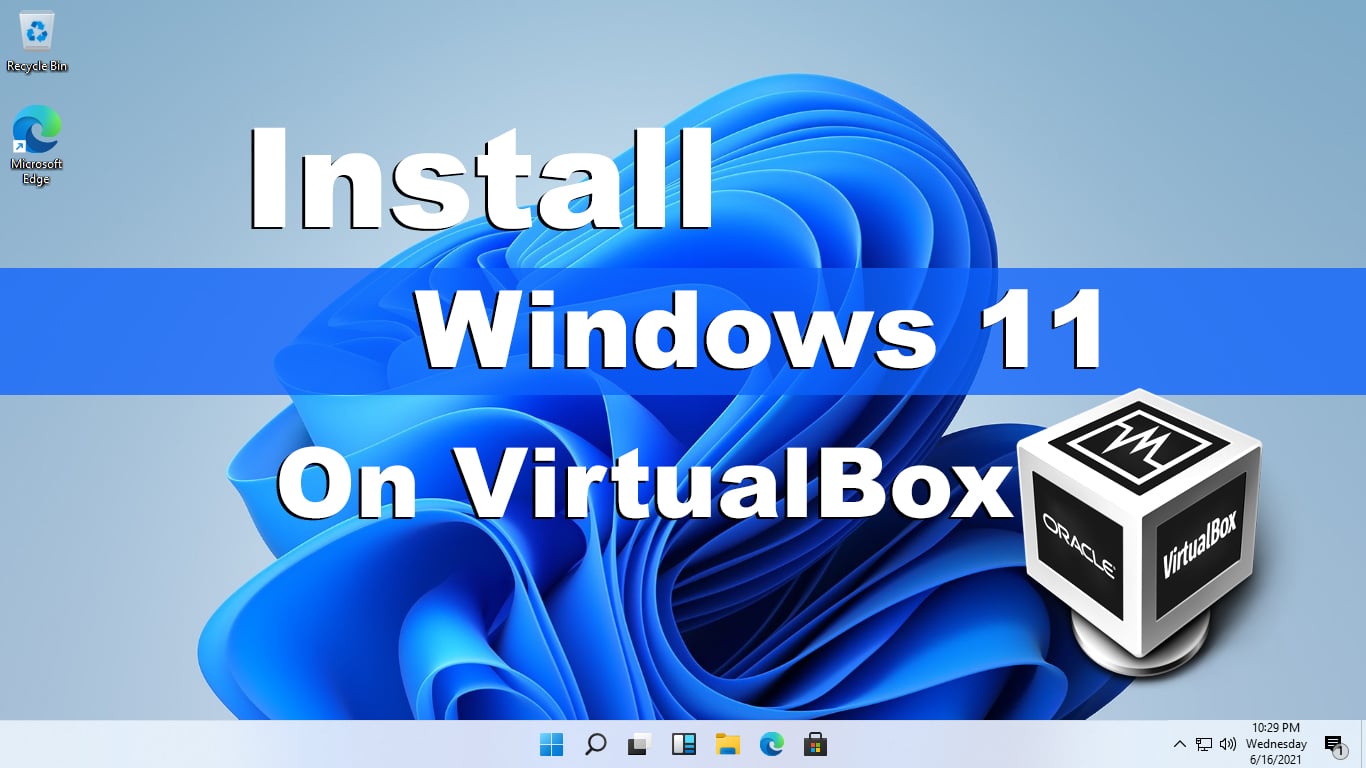
Windows 11 on VirtualBox

Table of Contents

  • Install Windows 11 on VirtualBox: Things required
  • Install Windows 11 on VirtualBox: Step by Step Guide
  • Conclusion: Install Windows 11 on VirtualBox

Install Windows 11 on VirtualBox: Things required

  1. Windows 11 ISO Image file- You can download Windows 11 ISO file from here. (Links are mentioned in step #1). You can also download Windows 11 ISO file directly from the Insider Program by Microsoft.
  2. VirtualBox — Virtual machines are great and so VirtualBox is. Whatever operating system you are using, we can install and use VirtualBox. The good thing is, it is entirely free for use and also it supports installing macOS. When you’re done with the download, you may install it that is quite easy without much difference from other program installation. When installing, if you encountered system extension block error, you may fix it by allowing the app from system preferences > security & privacy > Allow VirtualBox from there.

Before you proceed further, you need to make sure you have Virtual Box installed on your system and installed the Virtualbox extensions. If you need help with those, here are those guides that you can use-

  1. How to Install VirtualBox
  2. How to Install VirtualBox Extension Pack

Install Windows 11 on VirtualBox: Step by Step Guide

First off, open VirtualBox and straightly click on New.
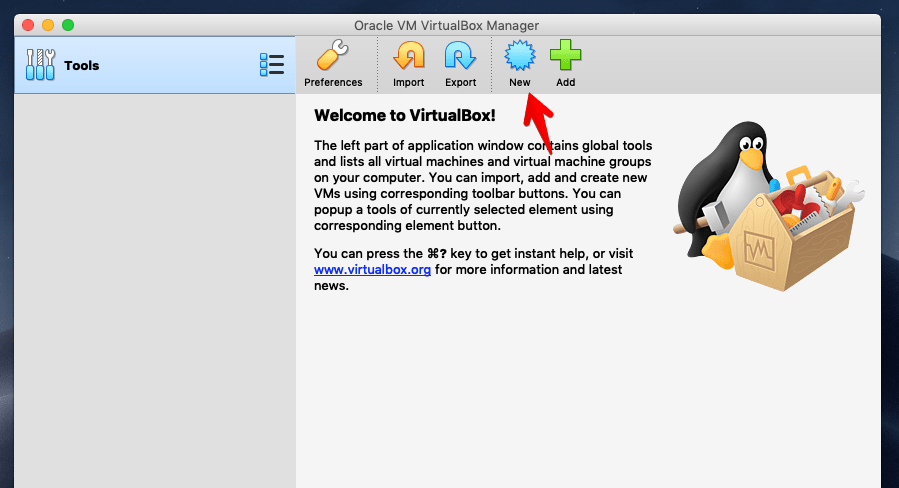
VirtualBox - Create New Virtual Machine
VirtualBox – Create New Virtual Machine

Give a name to the virtual machine, specify where to place the VM and select Microsoft Windows as the system type and its version Windows 10 (64-bit), then click Continue.
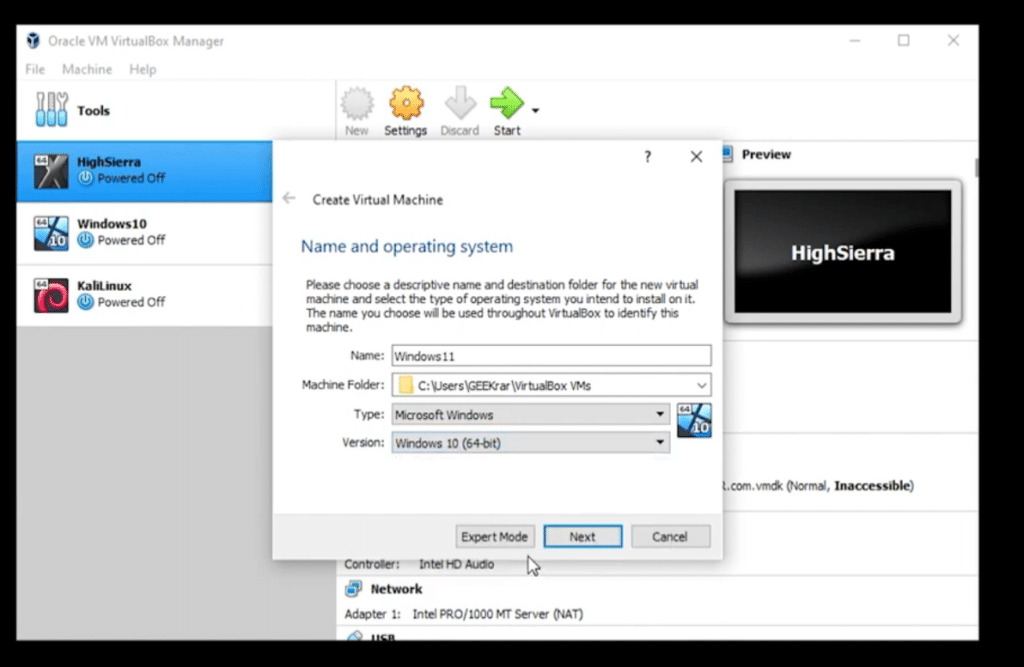
Name & Operating system

Next, allocate a good amount of memory size, then click Continue. We recommend assigning 50 – 65% memory of your system.
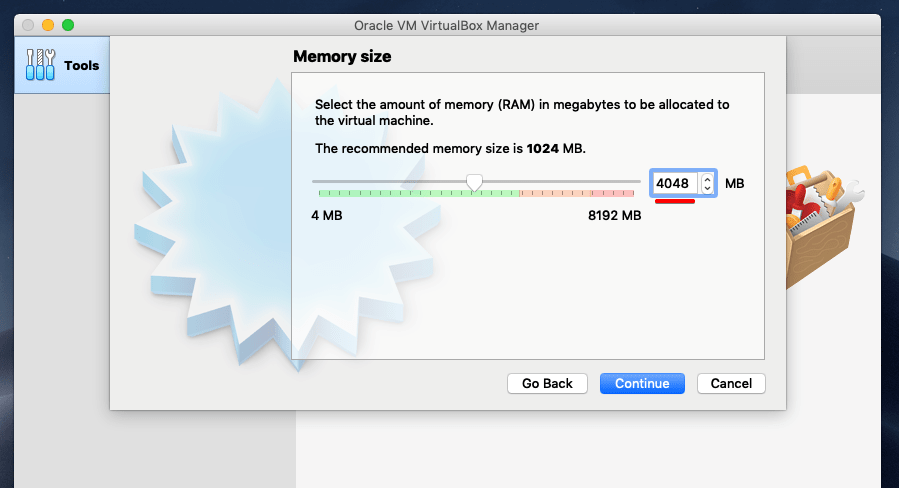
Memory Size
Memory Size

Now select Create a new virtual hard disk and click Continue.
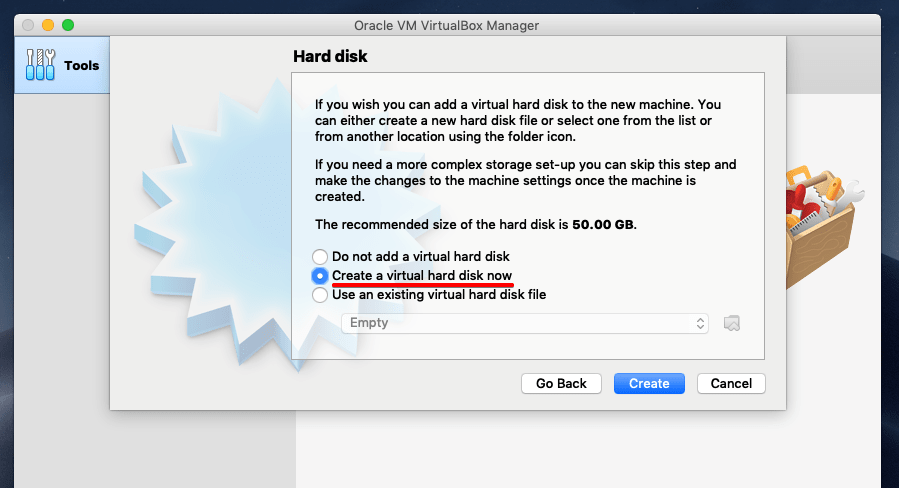
Hard Disk
Hard Disk

Select the hard disk file type by default and click Continue.
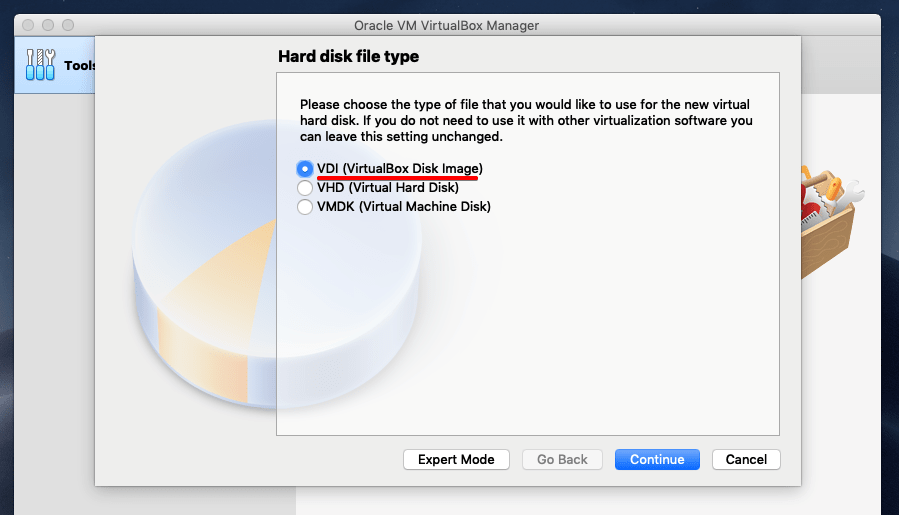
Hard Disk File Type
Hard Disk File Type

The dynamically allocated hard disk expands up to the specified disk space, select it and click Continue.
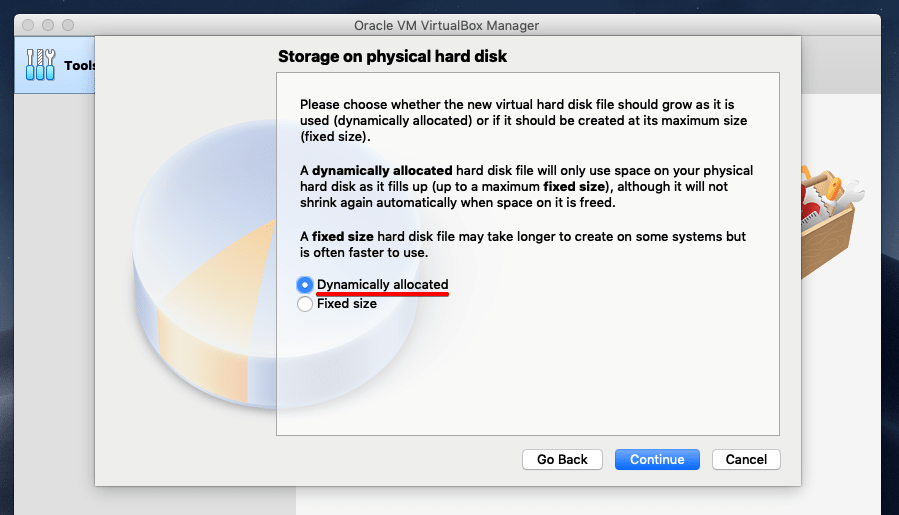
Storage on Physical Hard Disk

In this window, select the virtual machine location and the size of the hard disk you want to create, then click Create. This will immediately create the virtual machine.
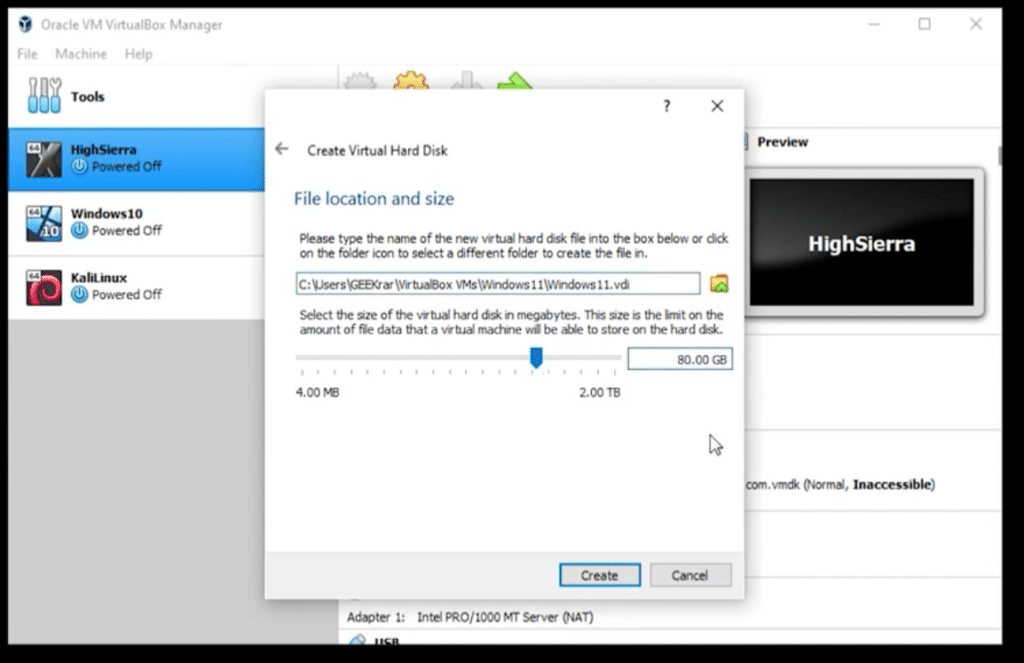
File Location & Size

With the machine created, on the VirtualBox screen, Click Settings.
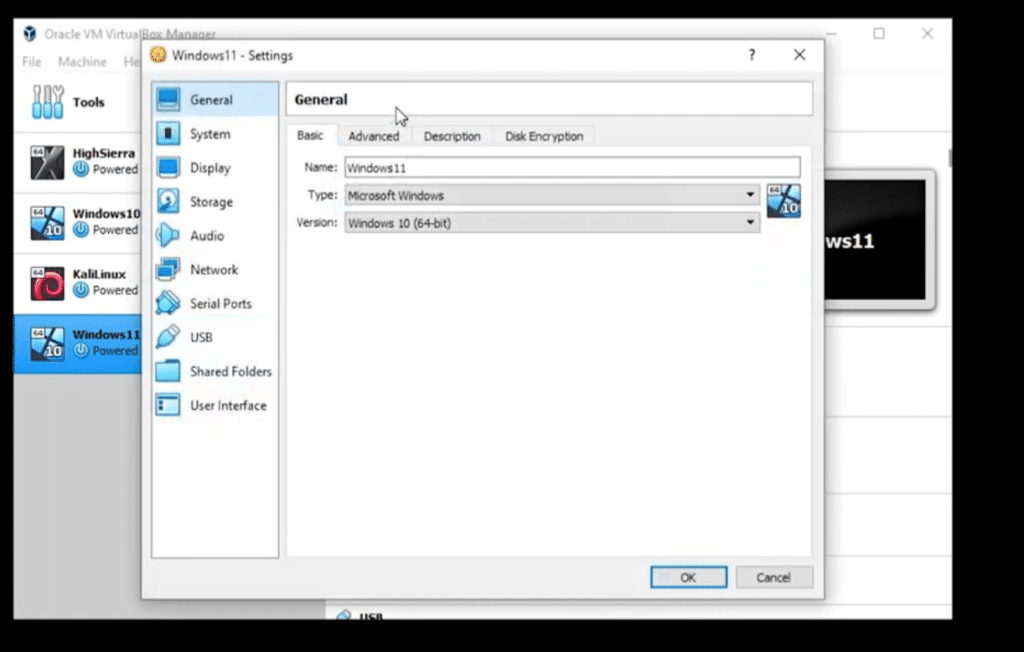
Go to Processors and select 4 processors.
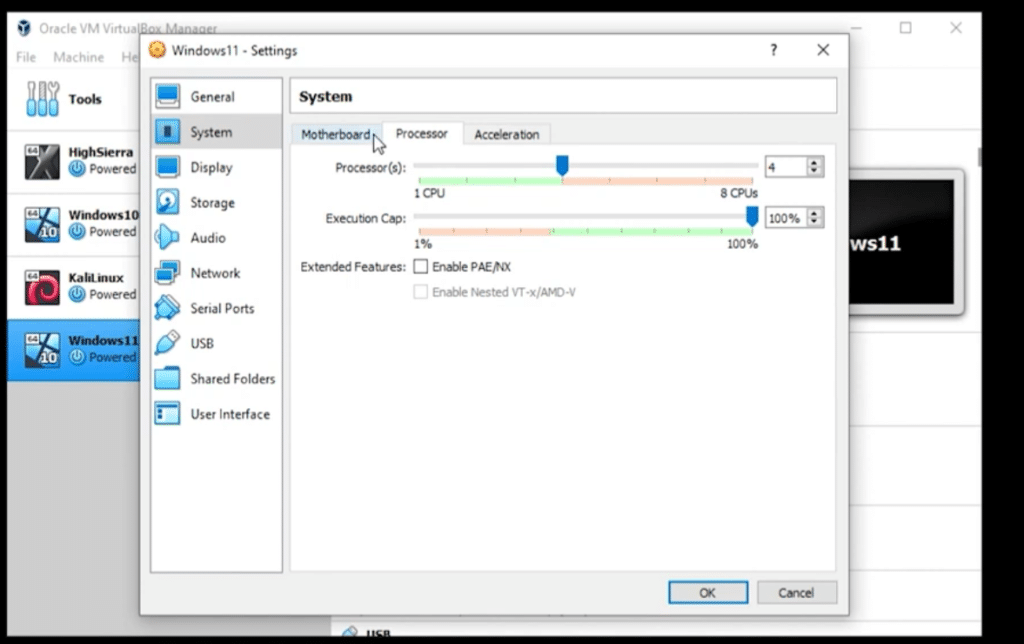
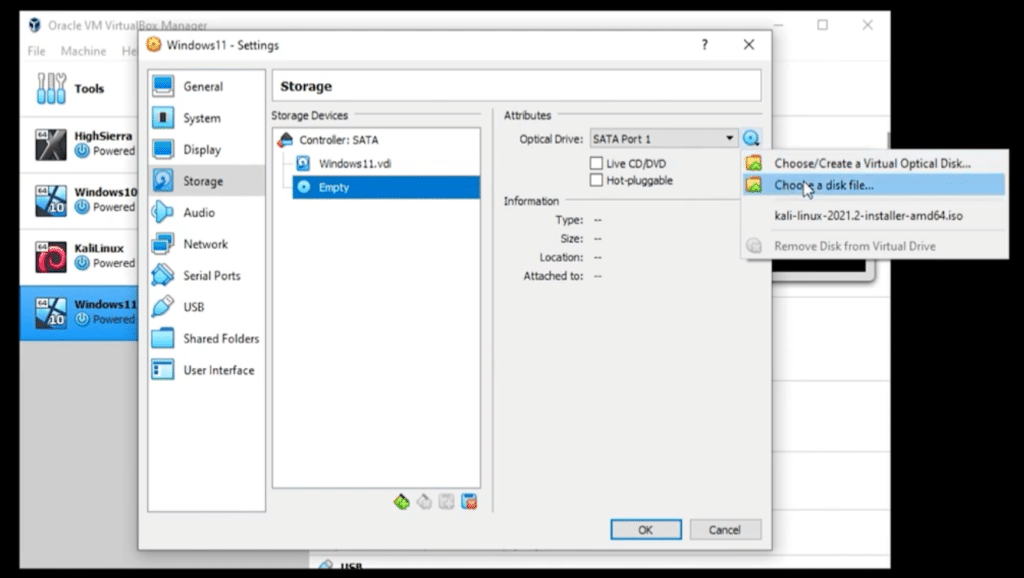
Now, go to storage and click the blue button on the top right corner. Select Choose a disk file.
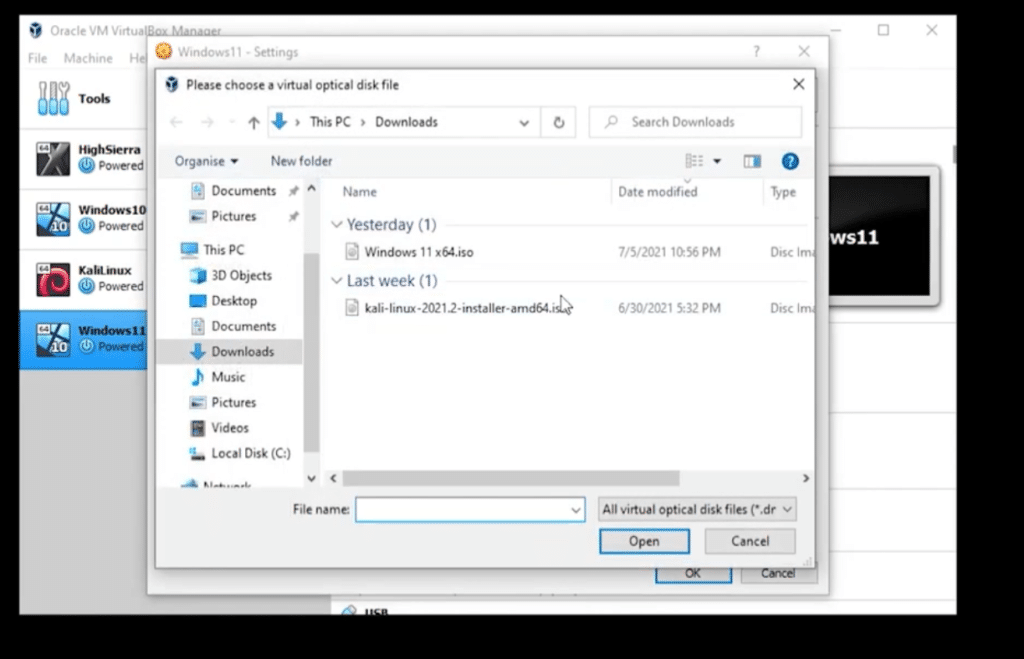
Now, select the ISO file that you downloaded and click open.
Please keep all the other configurations as it is.

Now, go to your Virtualbox and click Start.
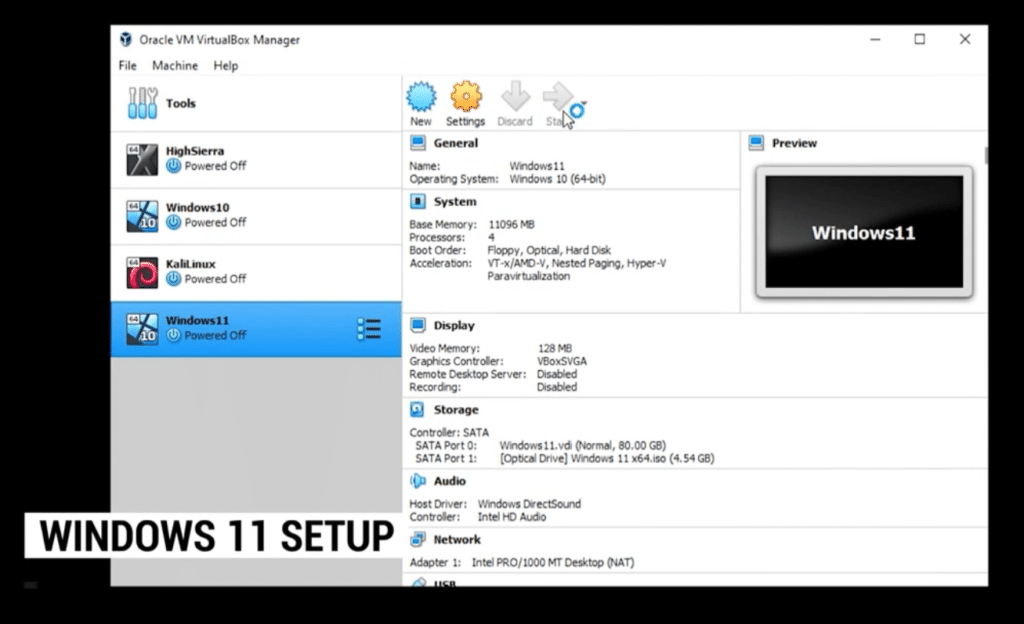
Start The Virtual Machine

A window will appear, browse the Windows 11 ISO image, select it, then click Open. Make sure you choose the 64-bit image you had chosen when creating the virtual machine.
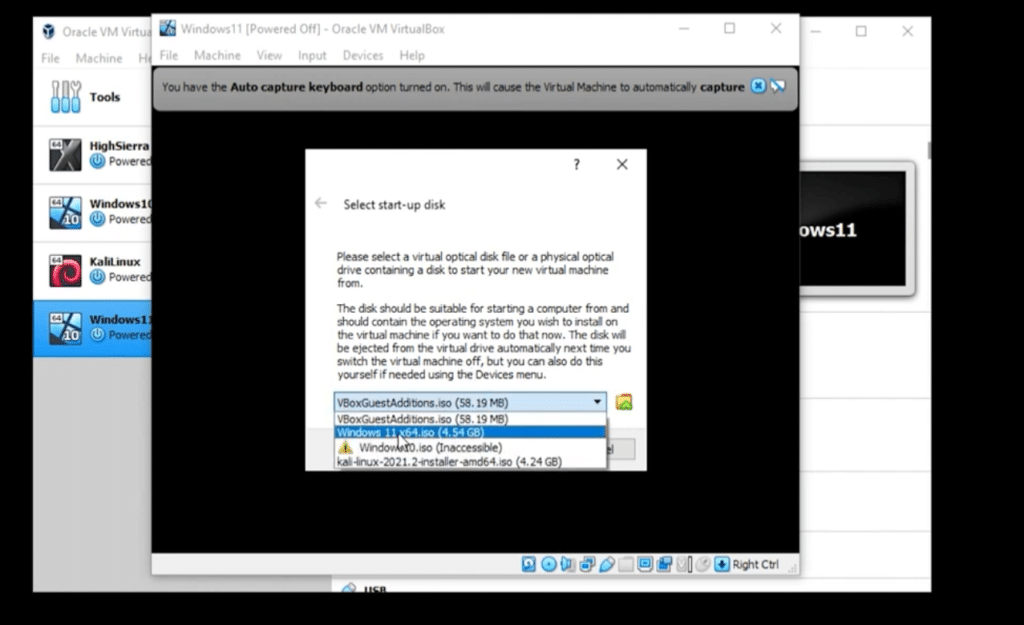
Choose Windows 11 ISO

The VirtualBox screen is there. Go ahead and click Start. You’re all set!

When you’ve done that, you’ll straightly boot into the Windows installation. On the Windows Setup, select the language, time, and currency with keyboard and click Next.
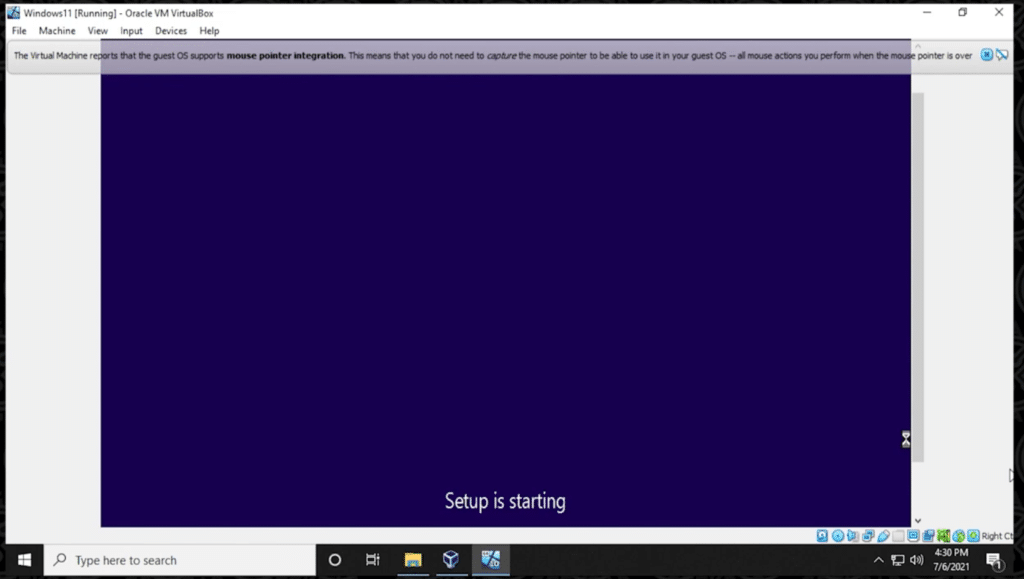
Windows Setup

Next, click Install Now.

Now enter the product key and click Next. If you don’t have a product key or want to try, you may click I don’t have a product key. It won’t prevent you.
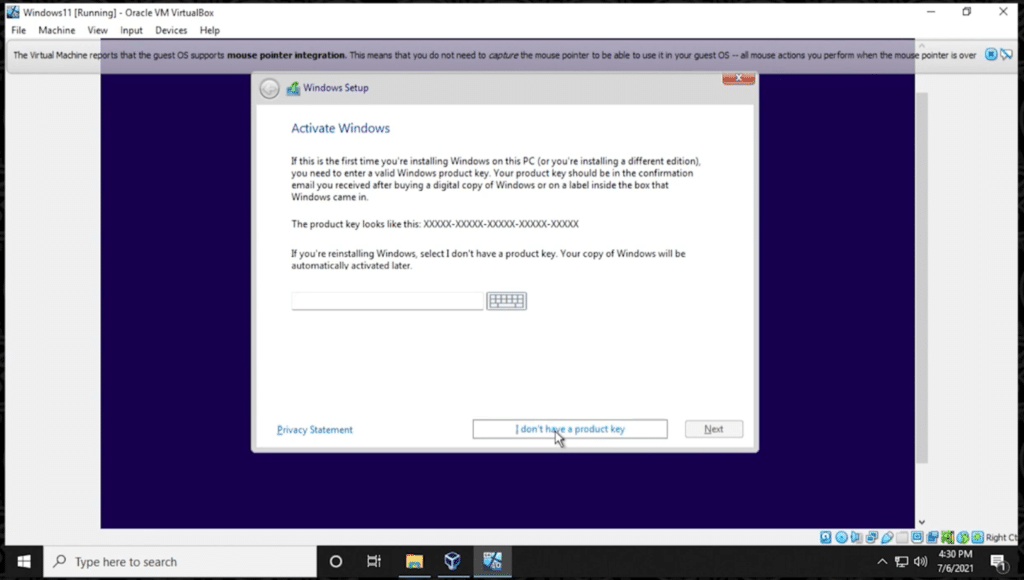
Activate Windows

In this screen that appears, select the edition of the Windows 11 you’d like to install and click Next.
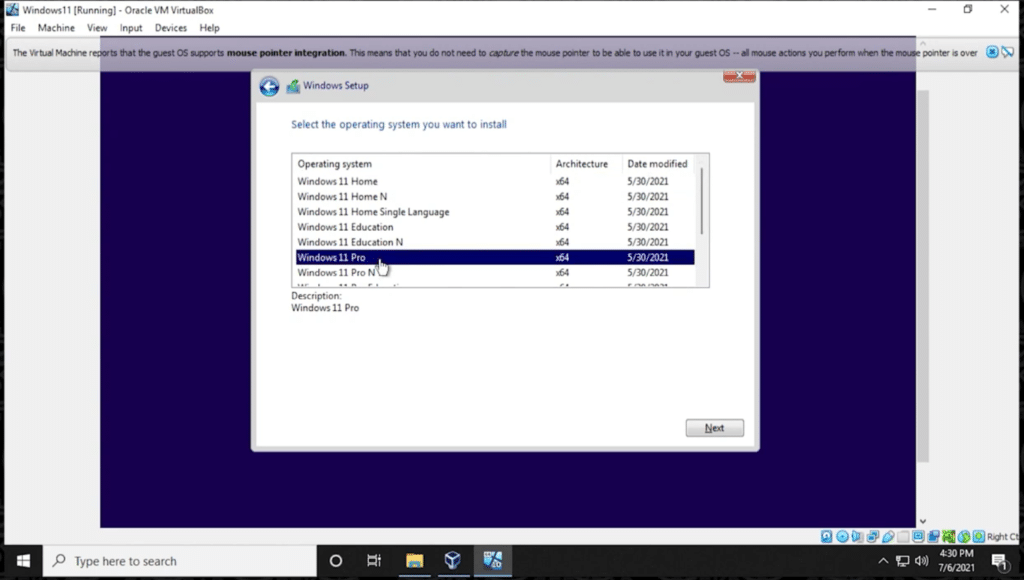
Select The Operating System

Give some time reading the license, or if you don’t care, click I accept the license terms and then click Next.

Since we want to install, select Custom: Install Windows only (advance) for the installation type.
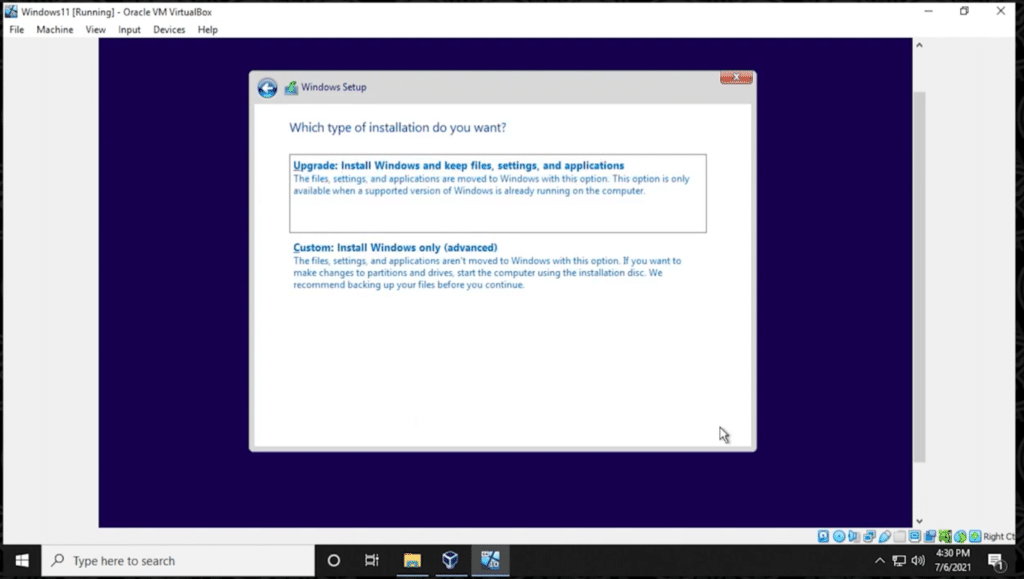
Installation Type

To install, you’ll need to create a partition. Since we’ve one disk, click on New, then click Apply and at the end click Next. If you’re asked for creating a partition, accept it.
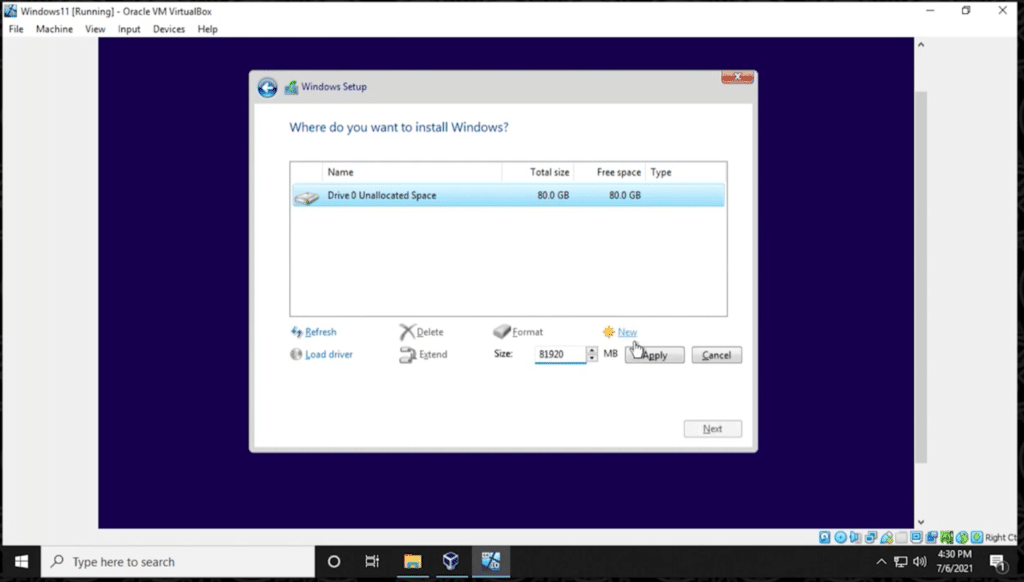
Create Partition

After you’ve done, it will install Windows. Just sit back and relax. It will take some time, and it will restart several times.
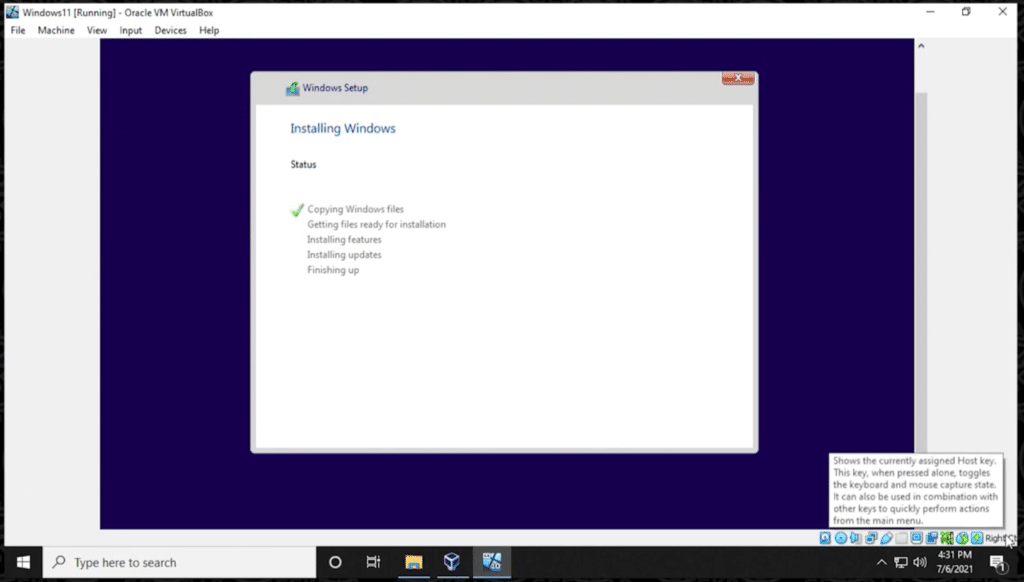
Installing

With that, you’re right into Windows, select your region, and click Yes.
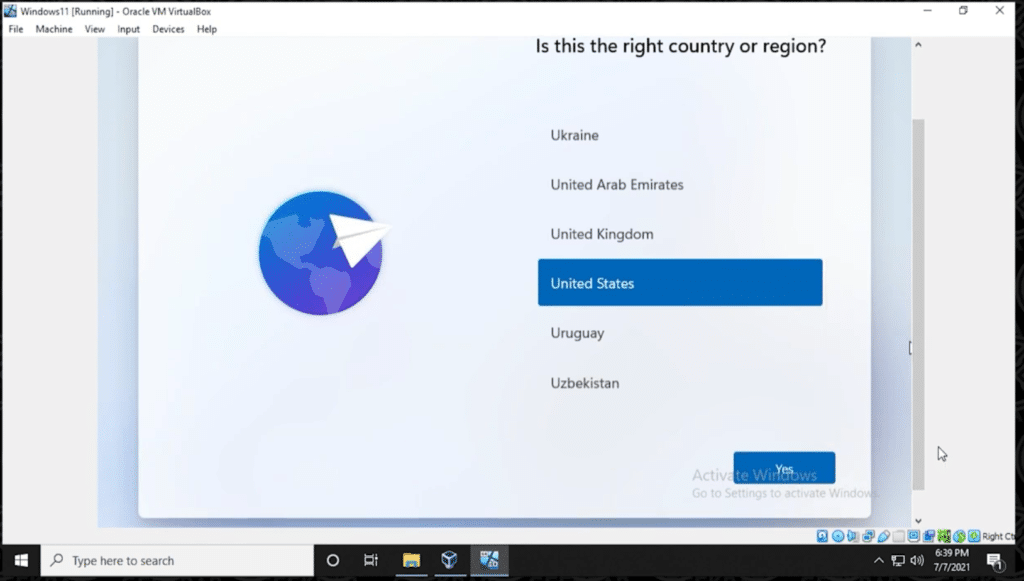
Region

Now choose your keyboard layout and click Yes.
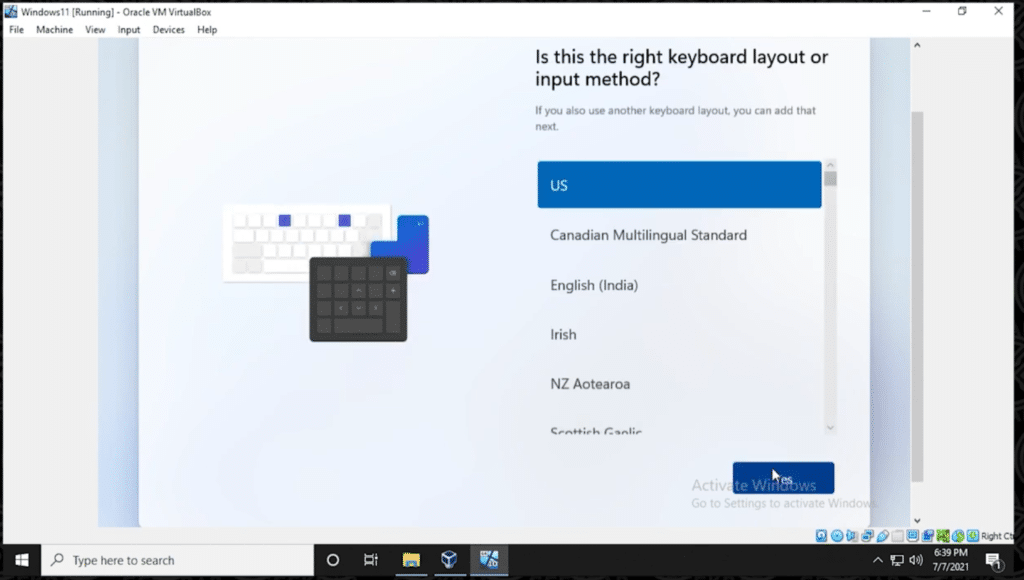
Keyboard Layout

Sign in if you’ve a Microsoft account; otherwise, click on the Office account to create a local account.
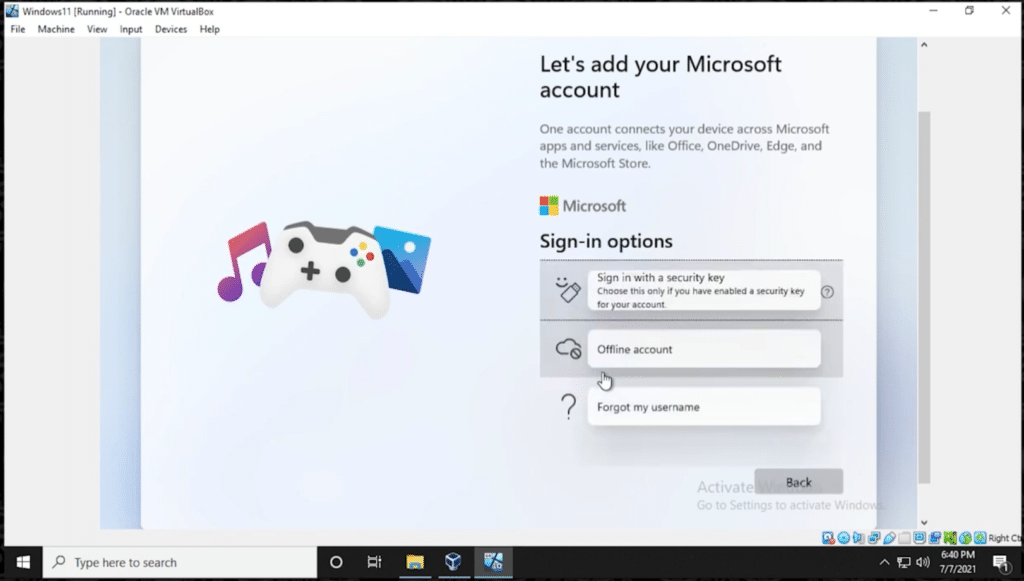
Sign In with Microsoft

Microsoft recommends signing in with Microsoft, ignore that and click No.

Type your name and click Next.

On the next screen, you’ll be asked some more things you can select or deselect, whatever you prefer. On this window, choose privacy settings the one you’d like and click Accept.
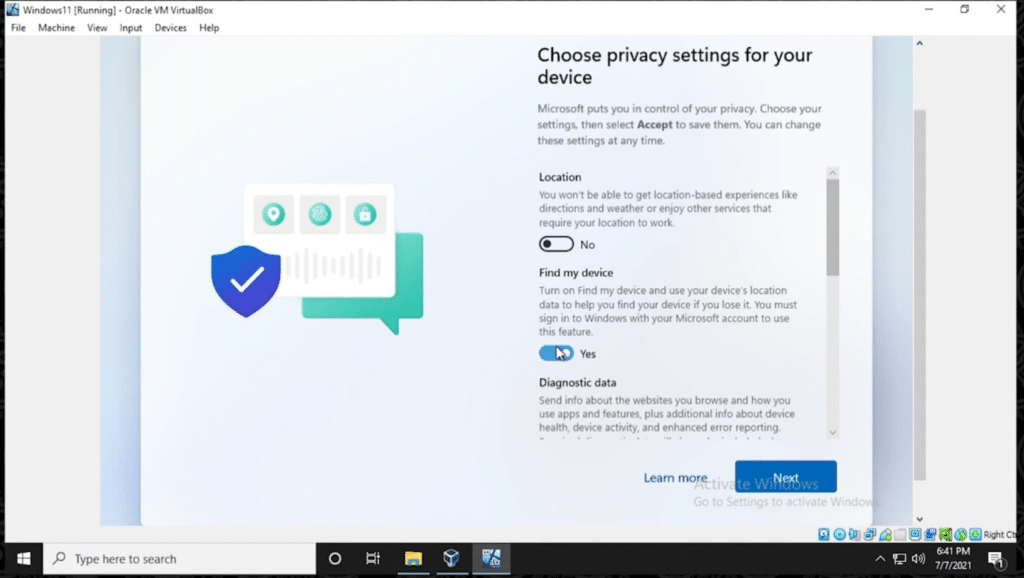
Choose Privacy Settings

Finally, you’ll have the gorgeous Windows 11 newest version installed.

With that, the installation process finishes. If you’ve something to tell us, we’re happy to know it.

Conclusion: Install Windows 11 on VirtualBox

I hope this guide on how to Install Windows 11 on VirtualBox was easy. If you face any issues, please share them in the comment section below. Also, you can go through our youtube video where we have shown the complete process to install Windows 11 on VirtualBox.

Tags: Windows 11 on VirtualBox
Previous Post

How to Fix VT-x is Not Available

Next Post

Install macOS Catalina on VirtualBox on Windows PC: 2025 Guide

Ruby Singh

Ruby Singh

Next Post
Install macOS Catalina on VirtualBox

Install macOS Catalina on VirtualBox on Windows PC: 2025 Guide

Comments 2

  1. Thomas Boomer says:
    4 years ago

    It looks like this was done on a pre-release version or a home version. The business versions require TPM 2.0, which I do not see on Virtual Box.

    Reply
    • Ali says:
      4 years ago

      yes you are correct, this is a beta version from summer. i’ll be updating this installation this month. There is an unlocked Windows 11 ISO in the forum, which allows you to bypass TPM.

      Reply

Leave a Reply Cancel reply

Your email address will not be published. Required fields are marked *

No Result
View All Result

Recent Articles

  • Top 5 Best Mac Data Recovery Software in 2026: Get Your Lost Files Back
  • Why Some Security Teams Are Looking Beyond VDI for Safe Remote Access
  • Specialized IT Solutions for Architecture Companies: Why Your Firm Needs Them
  • How to Stop Medical Bills From Piling Up After a Car Accident
  • Download Tiny10 ISO for Windows 10 (Complete Guide)
  • Download VMware Workstation Pro 25H2 (Windows | Linux): Direct Downloads
  • Download macOS Unlocker for VMware Workstation Pro 25H2 | Old Versions Available
  • Download Tiny11 25H2 ISO for Windows 11: Older Verions Available
  • How to Enable Intel VT-x or AMD-V On BIOS or UEFI Firmware
  • How to Dual Boot macOS Catalina & Windows 10 on PC
Facebook Twitter Youtube

Browse by Category

  • Android (15)
  • Discord (4)
  • Downloads (17)
  • Featured (8)
  • Internet (67)
  • iOS (16)
  • Linux (10)
  • Mac (151)
  • Virtual Machine (31)
  • VirtualBox (81)
  • VMware (67)
  • Windows (82)

Downloads

Download macOS DMG
Download macOS ISO
Download macOS VMDK
Download Windows ISO

GEEKrar

We are a team of skilled writers, editors and tech enthusiasts that help you how to get tech into work, pros and cons, explain hows and whys, hacks, and fixes of new modern tech.

© 2026 geekRAR.com

We use cookies on our website to give you the most relevant experience by remembering your preferences and repeat visits. By clicking “Accept”, you consent to the use of ALL the cookies.
Do not sell my personal information.
Cookie settingsACCEPT
Manage consent

Privacy Overview

This website uses cookies to improve your experience while you navigate through the website. Out of these, the cookies that are categorized as necessary are stored on your browser as they are essential for the working of basic functionalities of the website. We also use third-party cookies that help us analyze and understand how you use this website. These cookies will be stored in your browser only with your consent. You also have the option to opt-out of these cookies. But opting out of some of these cookies may affect your browsing experience.
Necessary
Always Enabled
Necessary cookies are absolutely essential for the website to function properly. This category only includes cookies that ensures basic functionalities and security features of the website. These cookies do not store any personal information.
Non-necessary
Any cookies that may not be particularly necessary for the website to function and is used specifically to collect user personal data via analytics, ads, other embedded contents are termed as non-necessary cookies. It is mandatory to procure user consent prior to running these cookies on your website.
SAVE & ACCEPT
No Result
View All Result

© 2026 geekRAR.com

Go to mobile version