• Home
  • MAC
  • Virtual Machines
    • VMware
    • VirtualBox
  • Windows
  • Linux
  • Downloads
    • ISO Files
      • Open Mamba ISO
      • AnduinOS ISO
      • Windows 7 ISO
      • Windows 11 ISO
    • macOS DMG
    • macOS ISO
    • macOS VMDK
    • VMware Workstation Pro
    • macOS Unlocker
    • DirectX 12
    • MSI Afterburner
    • Hyper-V Server 2019
  • Others
    • Android
    • Discord
    • iOS
    • Internet
GEEKrar
  • Home
  • MAC
  • Virtual Machines
    • VMware
    • VirtualBox
  • Windows
  • Linux
  • Downloads
    • ISO Files
      • Open Mamba ISO
      • AnduinOS ISO
      • Windows 7 ISO
      • Windows 11 ISO
    • macOS DMG
    • macOS ISO
    • macOS VMDK
    • VMware Workstation Pro
    • macOS Unlocker
    • DirectX 12
    • MSI Afterburner
    • Hyper-V Server 2019
  • Others
    • Android
    • Discord
    • iOS
    • Internet
No Result
View All Result
  • Home
  • MAC
  • Virtual Machines
    • VMware
    • VirtualBox
  • Windows
  • Linux
  • Downloads
    • ISO Files
      • Open Mamba ISO
      • AnduinOS ISO
      • Windows 7 ISO
      • Windows 11 ISO
    • macOS DMG
    • macOS ISO
    • macOS VMDK
    • VMware Workstation Pro
    • macOS Unlocker
    • DirectX 12
    • MSI Afterburner
    • Hyper-V Server 2019
  • Others
    • Android
    • Discord
    • iOS
    • Internet
No Result
View All Result
GEEKrar
No Result
View All Result
Home Windows

How to Shut Down Windows At a Specific Time

Ali by Ali
October 1, 2024
in Windows
0
How to Shut Down Windows At a Specific Time

How to Shut Down Windows At a Specific Time

34
VIEWS
Share on TwitterShare on Facebook

Windows 10 is the latest version of Microsoft Windows which was released on July 29, 2015. The latest update was done on November 12, 2019. Windows Microsoft releases a new major update every six months. These major updates can be interesting for some users but for some other users, it can cause some problems. Though most of the software updates simplify functions and operations but for some, it might be problematic. Whatever the Windows version and whatever update come in, we’ll see how to shut down Windows at a specific time.

Upgrading is a common thing which provides trendy things that everyone loves. You can also upgrade from Windows 7 or prior to the latest version of Windows. While a professional Windows user may work pretty easily on Windows whether upgraded or not, but most users don’t know how to turn off Windows after a specific time. This might seem pretty easy but for some, it’s quite challenging. In this post, we’ll show you how to shut down Windows at a specific time but before going throughout the process we need to have a few pieces of information about windows 10.

Windows 10

Just like other Windows, Windows 10 welcome you with its welcome screen, there you need to add an account to Sign in but if you haven’t added username and password to your account the Sign-in button will appear and you just need to click on that button to enter in your new windows. After clicking there you will directly go to your desktop. while you enter your desktop you may see some icons.

In Windows 10, it has updated and made stunning icons which are the graphical representation of your application but remember these aren’t the actual applications. You may wonder why we use icons when we have the actual application, it is because we use to open an application through its icon but except that, if you want to use the actual applications you can open Start Menu or search from the search bar to open the application. With that said, let’s dive into it.

  • Related: How to Reset Forgotten Password of macOS Catalina & Mojave

How to Shut Down Windows At a Specific Time

While we use Windows every day to do most things, but we love to automate things certainly. That can be a work, a task, a project and even shut down Windows. While starting and shutting down Windows is one of the easiest things, but times are there when we want to shut down Windows at a certain and specific time.

Maybe someone wants to install macOS Catalina on Windows so the installation of macOS on Windows isn’t that quick (even though it really depends on your system hardware) even if we take it as a high-end system, at least the installation process will take about 30 minutes. In the meantime, a necessary work might come into your mind which is unknown when it will end. So chances are you wouldn’t put you computer on all that time but you can’t close it also, because if you close your computer, the installation process will be fail. In this case, you’ll need to put Windows to shut down after a specific time. When everything is clear and would like to do this, we’ll do this now. In this part, we’ll show how to shut down Windows at a specific time.

Related: Install macOS Catalina on VMware on Windows PC

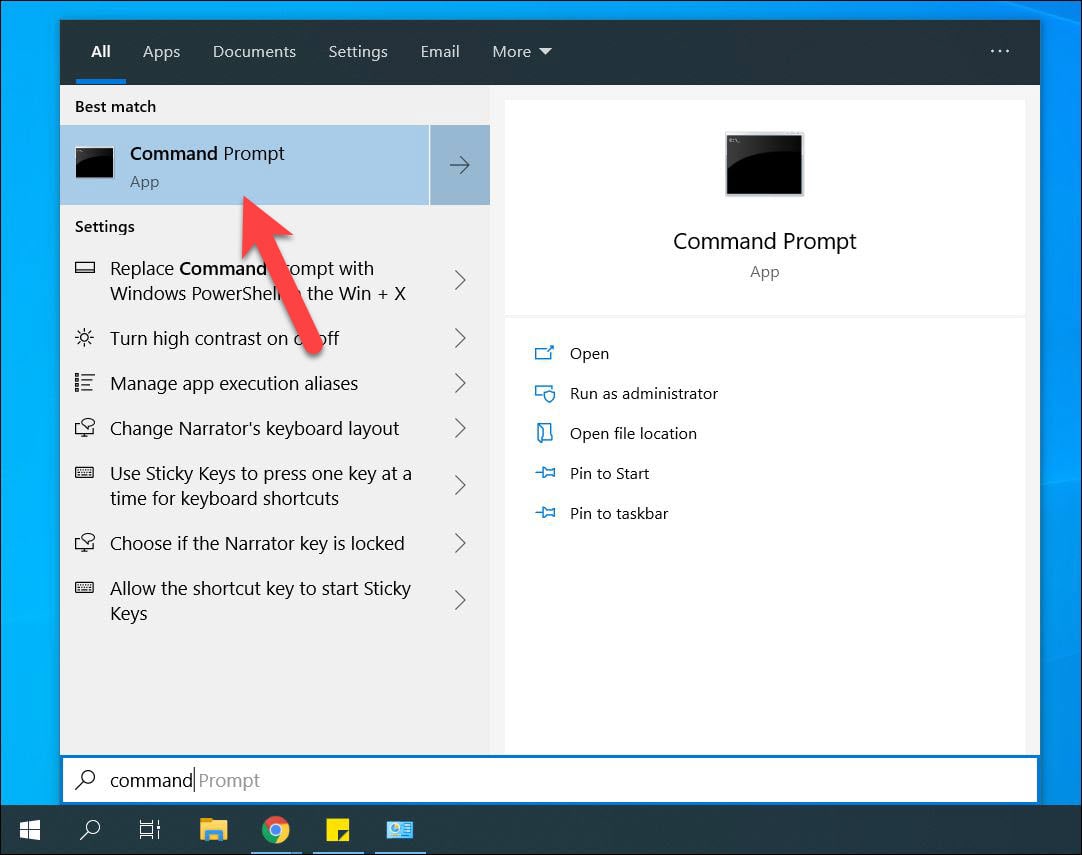
First, open Command Prompt by searching it in the search bar.
Start Menu
Start Menu

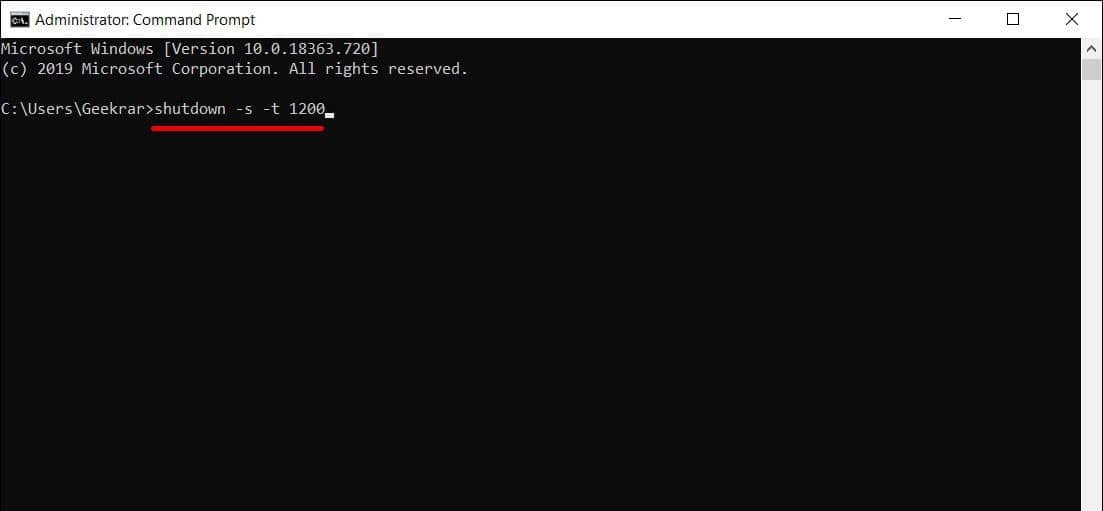
Next, enter the command in the following format. In the (XXXX) box, you’ll need to specify time in seconds for after how much time do you want your computer to shut down. Like if you want your computer to shut down in 20 mins, simply calculate it in seconds which is converting mins to seconds that will be multiplied. Like 1 min equals 60 seconds so we’ll multiply 20 x 60 which will be 1200 seconds, so write down it there. When you’re done, hit Enter.

shutdown -s -t XXXX
Shut Down
Shut Down

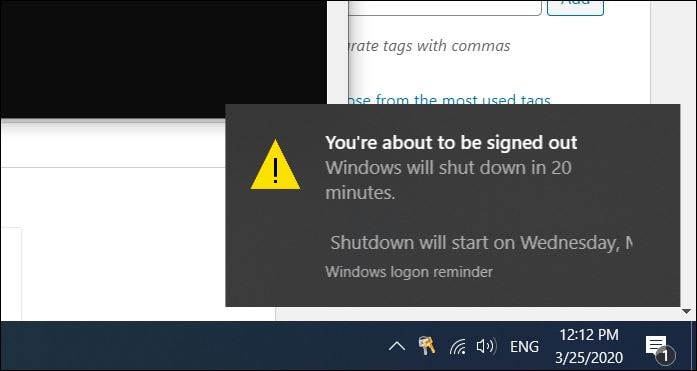
The shutdown notification should now appear.
Shut Down Notification

To cancel that, simply enter the command below and hit Enter.

shutdown -a
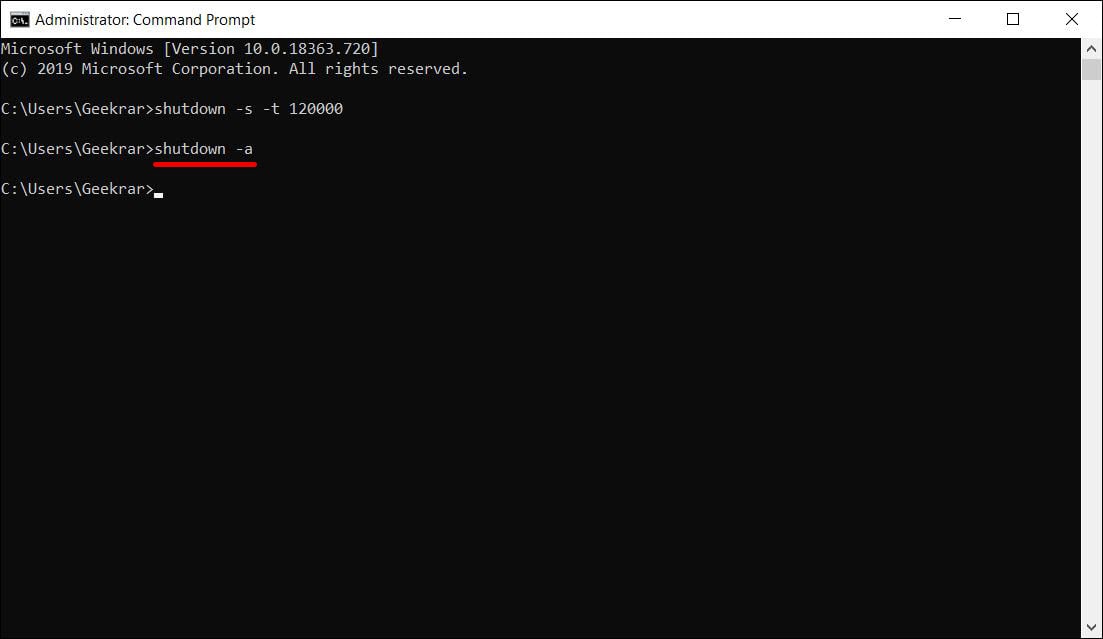
Cancel Shut Down
Cancel Shut Down

The shut down should be canceled now.
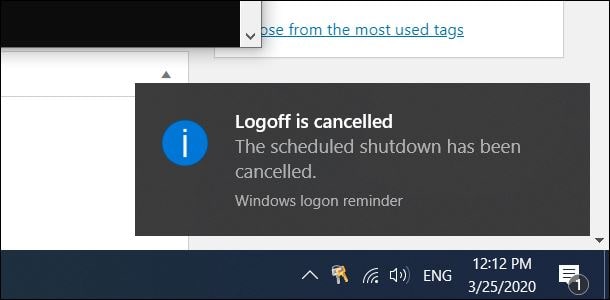
Cancelled Shutdown
Cancelled Shutdown

While there are many ways to actually do this specifically with Softwares. There are many apps out there but when Windows have its default option, why not use this. It’s way better than anything. That’s why we’ve used this method. This is as easy as it should be.

That comes to the end. If there’s some problem or would like to add or make some nice suggestions, we’re happy to hear.


Tags: At Specific TimeHow toHow to Shut DownHow to Shut Down WindowsShut downShut Down WindowsShut Down Windows At Specific TimeSwitch OffSwitch Off WindowsWindows
Previous Post

How to Get macOS Mojave Beautiful Day & Night Wallpaper

Next Post

How to Install Windows 10 on Android Without Root/Computer

Ali

Ali

Next Post
How to Install Windows 10 on Android Without Root Computer

How to Install Windows 10 on Android Without Root/Computer

Leave a Reply Cancel reply

Your email address will not be published. Required fields are marked *

No Result
View All Result

Recent Articles

  • Best Way to Download macOS Big Sur ISO Image (Latest Version: 11.7.11)
  • Download macOS Big Sur DMG File (Latest Version: 11.7.11)
  • macOS Big Sur Download VMDK File | (Latest Version: 11.7.11)
  • Download macOS Tahoe VMDK File for VMware – Latest Version 26.4
  • Download macOS Tahoe DMG: Direct Download Links
  • Download macOS Tahoe ISO for VirtualBox and VMware: Direct Download
  • Download macOS Sequoia ISO file (Latest Version: 15.7.4)
  • Download macOS Sequoia VMDK File (Latest Version: 15.7.4)
  • Download macOS Sequoia DMG file (Latest Version: 15.7.4)
  • Download macOS Sonoma DMG File (Latest Version: 14.8.4)
Facebook Twitter Youtube

Browse by Category

  • Android (15)
  • Discord (4)
  • Downloads (17)
  • Featured (8)
  • Internet (73)
  • iOS (16)
  • Linux (10)
  • Mac (150)
  • Virtual Machine (31)
  • VirtualBox (81)
  • VMware (67)
  • Windows (82)

Downloads

Download macOS DMG
Download macOS ISO
Download macOS VMDK
Download Windows ISO

GEEKrar

We are a team of skilled writers, editors and tech enthusiasts that help you how to get tech into work, pros and cons, explain hows and whys, hacks, and fixes of new modern tech.

© 2026 geekRAR.com

We use cookies on our website to give you the most relevant experience by remembering your preferences and repeat visits. By clicking “Accept”, you consent to the use of ALL the cookies.
Do not sell my personal information.
Cookie settingsACCEPT
Manage consent

Privacy Overview

This website uses cookies to improve your experience while you navigate through the website. Out of these, the cookies that are categorized as necessary are stored on your browser as they are essential for the working of basic functionalities of the website. We also use third-party cookies that help us analyze and understand how you use this website. These cookies will be stored in your browser only with your consent. You also have the option to opt-out of these cookies. But opting out of some of these cookies may affect your browsing experience.
Necessary
Always Enabled
Necessary cookies are absolutely essential for the website to function properly. This category only includes cookies that ensures basic functionalities and security features of the website. These cookies do not store any personal information.
Non-necessary
Any cookies that may not be particularly necessary for the website to function and is used specifically to collect user personal data via analytics, ads, other embedded contents are termed as non-necessary cookies. It is mandatory to procure user consent prior to running these cookies on your website.
SAVE & ACCEPT
No Result
View All Result

© 2026 geekRAR.com

Go to mobile version