• Home
  • MAC
  • Virtual Machines
    • VMware
    • VirtualBox
  • Windows
  • Linux
  • Downloads
    • ISO Files
      • Open Mamba ISO
      • AnduinOS ISO
      • Windows 7 ISO
      • Windows 11 ISO
    • macOS DMG
    • macOS ISO
    • macOS VMDK
    • VMware Workstation Pro
    • macOS Unlocker
    • DirectX 12
    • MSI Afterburner
    • Hyper-V Server 2019
  • Others
    • Android
    • Discord
    • iOS
    • Internet
GEEKrar
  • Home
  • MAC
  • Virtual Machines
    • VMware
    • VirtualBox
  • Windows
  • Linux
  • Downloads
    • ISO Files
      • Open Mamba ISO
      • AnduinOS ISO
      • Windows 7 ISO
      • Windows 11 ISO
    • macOS DMG
    • macOS ISO
    • macOS VMDK
    • VMware Workstation Pro
    • macOS Unlocker
    • DirectX 12
    • MSI Afterburner
    • Hyper-V Server 2019
  • Others
    • Android
    • Discord
    • iOS
    • Internet
No Result
View All Result
  • Home
  • MAC
  • Virtual Machines
    • VMware
    • VirtualBox
  • Windows
  • Linux
  • Downloads
    • ISO Files
      • Open Mamba ISO
      • AnduinOS ISO
      • Windows 7 ISO
      • Windows 11 ISO
    • macOS DMG
    • macOS ISO
    • macOS VMDK
    • VMware Workstation Pro
    • macOS Unlocker
    • DirectX 12
    • MSI Afterburner
    • Hyper-V Server 2019
  • Others
    • Android
    • Discord
    • iOS
    • Internet
No Result
View All Result
GEEKrar
No Result
View All Result
Home Mac

How to install the public beta version of macOS Monterey

Ruby Singh by Ruby Singh
July 3, 2024
in Mac
0
How to install the public beta version of macOS Monterey
121
VIEWS
Share on TwitterShare on Facebook

Apple has launched a public beta version of macOS Monterey. This is the next big update for Mac computers (the final version is expected later in 2021), bringing some big changes. This article will tell you How to install the public beta version of macOS Monterey on your computer if you need it. Once you install the beta version, it will most likely receive several updates to the final version.

Table of Contents

  • What’s New in macOS Monterey
  • Which devices can be upgraded to macOS Monterey
  • How to install macOS Monterey in the main partition
  • How to install macOS Monterey on a separate hard disk partition

What’s New in macOS Monterey

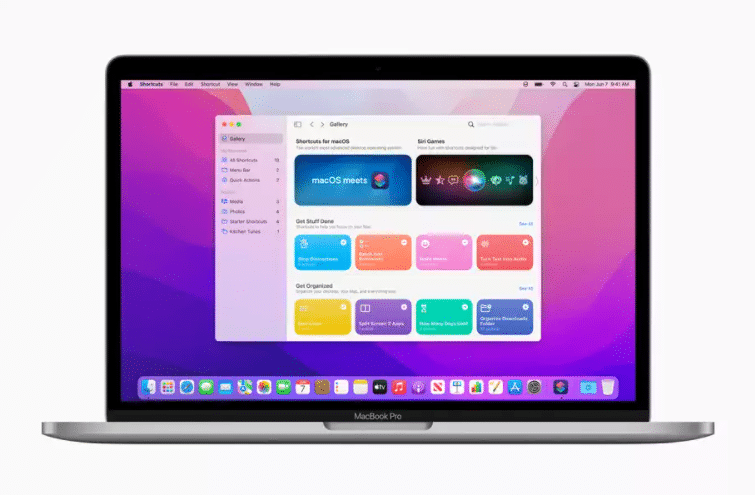
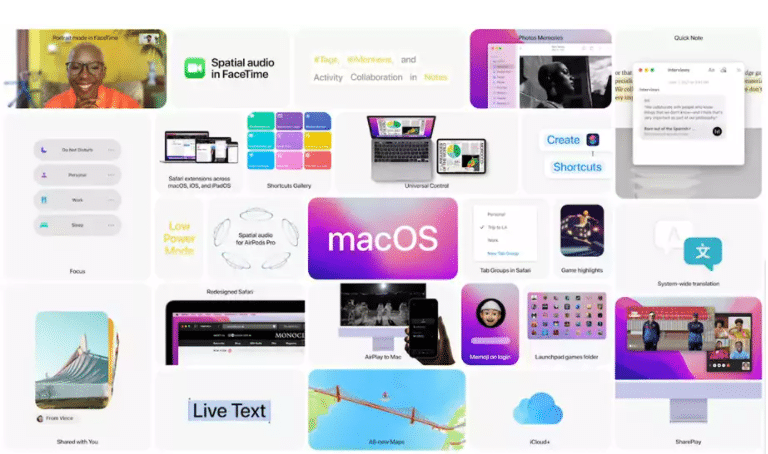
One of the most Apple’s most impressive demosWDC 2021 was a new drag-and-drop feature called Universal Control. It will allow you to smoothly move the cursor and files between your iPad and Mac computer as if they were all connected. The Mac will also get shortcuts and be an AirPlay screen, so your computer will be able to play content from your iPhone or iPad.
Which devices can be upgraded to macOS Monterey

  • iMac (2015 and newer)
  • iMac Pro (2017 and newer)
  • Mac Pro (2013 and newer)
  • Mac mini (2014 and more)
  • MacBook Pro (2015 and newer)
  • MacBook Air (2015 and more)
  • MacBook (2016 and newer)

How to install macOS Monterey in the main partition

First, back up your data with Time Machine. This will allow you to return to Big Sur if something goes wrong with the Monterey beta. If you plan to install this beta on your main computer, keep in mind that you may encounter problems. Also, make sure that you have about 20 GB of free space on your hard disk before installing.
There is a way to avoid this drama. If you’re using a computer with macOS High Sierra or later, you can use the built-in tools to partition your hard drive so that the beta can run in isolation. This way, you can test the new features and then load them into your stable macOS partition along with the rest of the data when you’re done. We’ll talk about that later.

Let’s go!

  1. Sign in to the Apple Software Beta Portal via Safari.
  2. If you haven’t previously installed the public beta, you’ll need to sign up to access with your Apple ID. Or just click “Login” in the upper right corner of the page.
  3. Click “macOS” in the center of the next page.
  4. Scroll down until you find a button that says “Download macOS Public Beta Access Utility.” Click on it to download a .DMG, which will register your computer.
  5. After downloading the installer, you will be prompted to make a backup if you haven’t already made one in Time Machine. (You made a backup, right?)
  6. Finally, go to Software Update in the System Preferences app (unless it opens automatically) to install the beta. If you’ve signed up for the beta program, you should see the message “This Mac is registered with the Apple Software Beta Program” message located under the large “Software Update” icon. Note: Downloads may not be available immediately. Once that happens, you’ll get a notification.
  7. It will take some time to download the update file. Once this is done, click Install.

How to install macOS Monterey on a separate hard disk partition
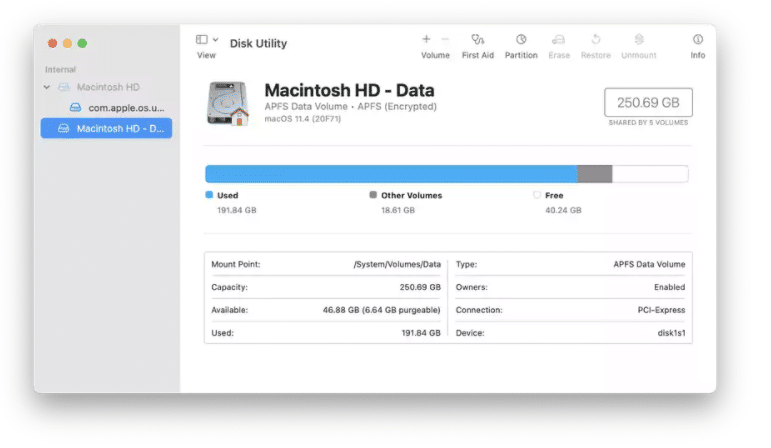
  1. Open Disk Utility (a built-in application that can be found by typing its name in the Spotlight search bar). The partitions of your hard drive will be listed in the “Internal” section on the left side of the window. You can only see one.
  2. If you’re using a computer with macOS High Sierra or later, clicking on the main partition should indicate that it’s an APFS volume. If so, you can simply click the “plus” button above the word “Volume” in the upper-left corner of the Disk Utility window to create a new volume.
  3. You can name the volume what you want and then click Add. Because storage formatted in APFS is shared across volumes, you don’t have to worry about how much space you need to allocate to a new volume when you create it. Note: If your computer’s drive is formatted in Mac OS Extended instead of APFS, you can instead click the “Split” button at the top of the Disk Utility window. You’ll need to name the partition and then decide how much storage you want on that portion of the hard drive. Given that previous public betas were larger than 10 GB, I’d recommend allocating at least 30 GB.
  4. Now that you have another volume (or partition), you can install the beta version on it instead of on the primary drive.
  5. To switch between volumes or partitions, you need to restart your computer and hold down the Option key during startup.

You can also download macOS Monterey files (ISO, DMG or VMDK) here.

Previous Post

Download macOS Sequoia Full Installer .PKG file

Next Post

How to Download Windows 11 (22000.132) INSIDER Preview ISO

Ruby Singh

Ruby Singh

Next Post
How to Download Windows 11 (22000.132) INSIDER Preview ISO

How to Download Windows 11 (22000.132) INSIDER Preview ISO

Leave a Reply Cancel reply

Your email address will not be published. Required fields are marked *

No Result
View All Result

Recent Articles

  • Best Way to Download macOS Big Sur ISO Image (Latest Version: 11.7.11)
  • Download macOS Big Sur DMG File (Latest Version: 11.7.11)
  • macOS Big Sur Download VMDK File | (Latest Version: 11.7.11)
  • Download macOS Tahoe VMDK File for VMware – Latest Version 26.4
  • Download macOS Tahoe DMG: Direct Download Links
  • Download macOS Tahoe ISO for VirtualBox and VMware: Direct Download
  • Download macOS Sequoia ISO file (Latest Version: 15.7.4)
  • Download macOS Sequoia VMDK File (Latest Version: 15.7.4)
  • Download macOS Sequoia DMG file (Latest Version: 15.7.4)
  • Download macOS Sonoma DMG File (Latest Version: 14.8.4)
Facebook Twitter Youtube

Browse by Category

  • Android (15)
  • Discord (4)
  • Downloads (17)
  • Featured (8)
  • Internet (73)
  • iOS (16)
  • Linux (10)
  • Mac (150)
  • Virtual Machine (31)
  • VirtualBox (81)
  • VMware (67)
  • Windows (82)

Downloads

Download macOS DMG
Download macOS ISO
Download macOS VMDK
Download Windows ISO

GEEKrar

We are a team of skilled writers, editors and tech enthusiasts that help you how to get tech into work, pros and cons, explain hows and whys, hacks, and fixes of new modern tech.

© 2026 geekRAR.com

We use cookies on our website to give you the most relevant experience by remembering your preferences and repeat visits. By clicking “Accept”, you consent to the use of ALL the cookies.
Do not sell my personal information.
Cookie settingsACCEPT
Manage consent

Privacy Overview

This website uses cookies to improve your experience while you navigate through the website. Out of these, the cookies that are categorized as necessary are stored on your browser as they are essential for the working of basic functionalities of the website. We also use third-party cookies that help us analyze and understand how you use this website. These cookies will be stored in your browser only with your consent. You also have the option to opt-out of these cookies. But opting out of some of these cookies may affect your browsing experience.
Necessary
Always Enabled
Necessary cookies are absolutely essential for the website to function properly. This category only includes cookies that ensures basic functionalities and security features of the website. These cookies do not store any personal information.
Non-necessary
Any cookies that may not be particularly necessary for the website to function and is used specifically to collect user personal data via analytics, ads, other embedded contents are termed as non-necessary cookies. It is mandatory to procure user consent prior to running these cookies on your website.
SAVE & ACCEPT
No Result
View All Result

© 2026 geekRAR.com

Go to mobile version