• Home
  • MAC
  • Virtual Machines
    • VMware
    • VirtualBox
  • Windows
  • Linux
  • Downloads
    • ISO Files
      • Open Mamba ISO
      • AnduinOS ISO
      • Windows 7 ISO
      • Windows 11 ISO
    • macOS DMG
    • macOS ISO
    • macOS VMDK
    • VMware Workstation Pro
    • macOS Unlocker
    • DirectX 12
    • MSI Afterburner
    • Hyper-V Server 2019
  • Others
    • Android
    • Discord
    • iOS
    • Internet
GEEKrar
  • Home
  • MAC
  • Virtual Machines
    • VMware
    • VirtualBox
  • Windows
  • Linux
  • Downloads
    • ISO Files
      • Open Mamba ISO
      • AnduinOS ISO
      • Windows 7 ISO
      • Windows 11 ISO
    • macOS DMG
    • macOS ISO
    • macOS VMDK
    • VMware Workstation Pro
    • macOS Unlocker
    • DirectX 12
    • MSI Afterburner
    • Hyper-V Server 2019
  • Others
    • Android
    • Discord
    • iOS
    • Internet
No Result
View All Result
  • Home
  • MAC
  • Virtual Machines
    • VMware
    • VirtualBox
  • Windows
  • Linux
  • Downloads
    • ISO Files
      • Open Mamba ISO
      • AnduinOS ISO
      • Windows 7 ISO
      • Windows 11 ISO
    • macOS DMG
    • macOS ISO
    • macOS VMDK
    • VMware Workstation Pro
    • macOS Unlocker
    • DirectX 12
    • MSI Afterburner
    • Hyper-V Server 2019
  • Others
    • Android
    • Discord
    • iOS
    • Internet
No Result
View All Result
GEEKrar
No Result
View All Result
Home Mac

3 Easy Ways to Change User Account Name in Windows 10

Ruby Singh by Ruby Singh
January 10, 2022
in Mac, Windows
0
3 Easy Ways to Change User Account Name in Windows 10
129
VIEWS
Share on TwitterShare on Facebook

When you sign in to Windows 10, the user account name is displayed on the screen. Perhaps you want to change it for some reason. It’s not hard to do, and there are several ways to do it. Let’s talk about them in more detail.

Table of Contents

  • How to Change Username in Windows 10
    • 1. Use netplwiz to change your username in Windows 10
    • 2. Use the Local Users and Groups console to change the user name in Windows
    • 3. Use control panel to change your user name in Windows
  • Conclusion:

How to Change Username in Windows 10

There can be many reasons for changing the username in Windows 10. Some are trying to make their account less playful or get rid of the facelessness in the face of a specific “user.” If you decide to change the Windows 10 user account name that appears on the screen when you sign in, there are several different ways. This article will cover the top 3 options for quickly changing your username in Windows 10.

You can also read: How to Sign Out Microsoft Account from Windows 10

1. Use netplwiz to change your username in Windows 10

The netplwiz account setup utility helps you instantly change usernames in Windows 10. Let’s find out how to do it.

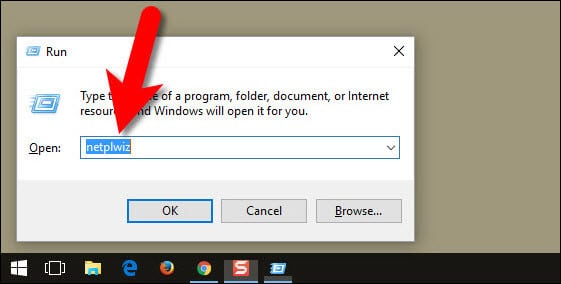
1. In the search box on the taskbar, type netplwiz, and press Enter. You may likely need to select the desired user account from several available in the list.
2. In the users of this Computer window, select the account whose name you want to change.

3. Once you have done so, click on the properties button below the window.
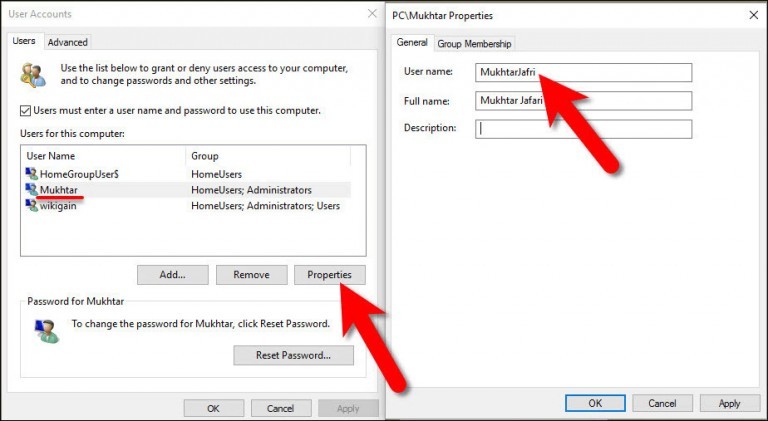
4. Enter a new username in the Full Name field in the window that appears.

5. Now click Apply and OK to save the changes.

You will now see the new username when you sign in or sign out of your account.

2. Use the Local Users and Groups console to change the user name in Windows

Here’s another quick way to change your username in Windows. To do this, run the lusrmgr.msc command. Follow these steps:

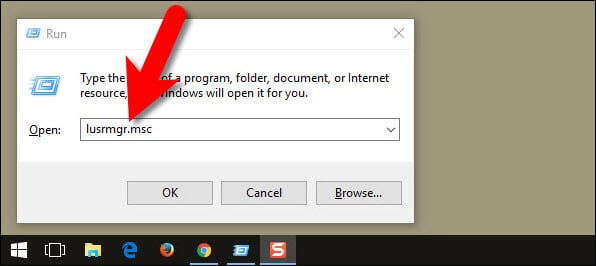
1. Right-click the Start menu and select Run. Alternatively, you can press the Win+R keys to open the Run dialog box.

2. When the Run window appears, type lusrmgr.msc in it and press Enter. You will now work in the Local Users and Groups window.
3. Here, you will find the Users and Groups folders. Expand the Users folder in the left pane.
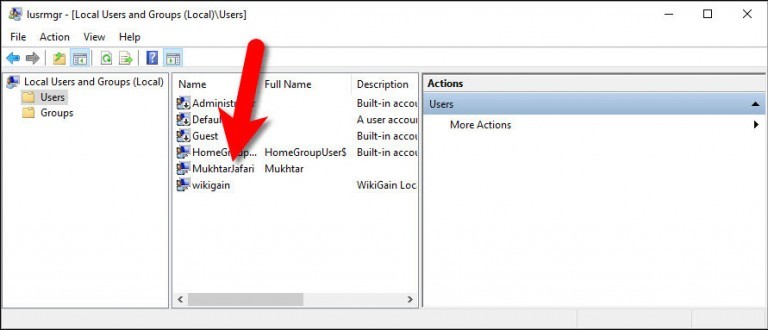
4. Here, you will see several user accounts of your system. Double-click the user account you want to rename.

5. Enter a new username when prompted. This name must be entered in the Full Name field.

6. Click Apply and OK to save the changes.
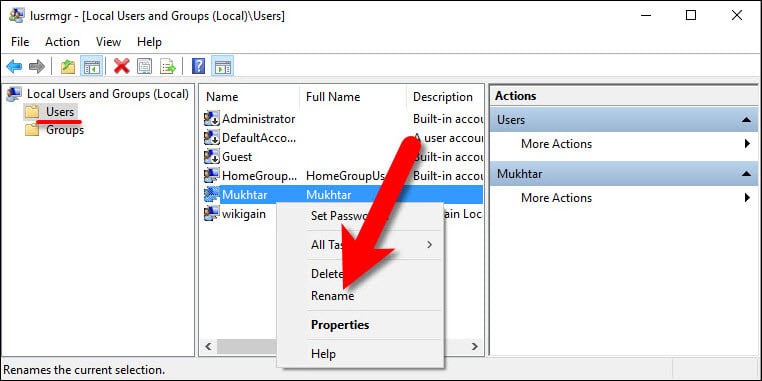
You can also use this setting to prevent users from changing their passwords. To do this, check the “Prevent user from changing password” checkbox, click Apply, and click OK.

3. Use control panel to change your user name in Windows

The last way to change your user name in Windows is to use the Control Panel. To do this, follow these steps:

1. Press Win+R to open the startup window. Once opened, type the control panel and press Enter. You can do something else – use search by typing the phrase control panel in the search box on the taskbar.
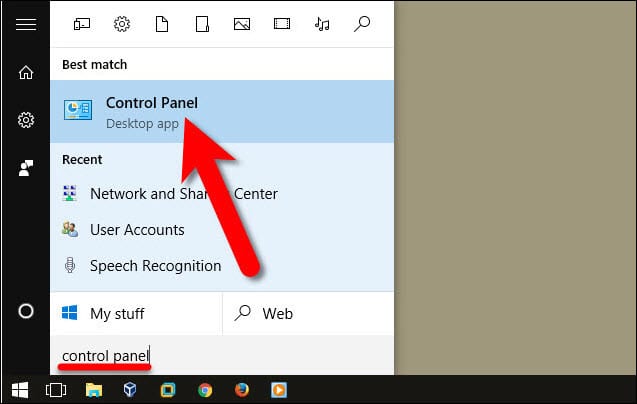
2. When you find yourself in the Control Panel window, click user Accounts.
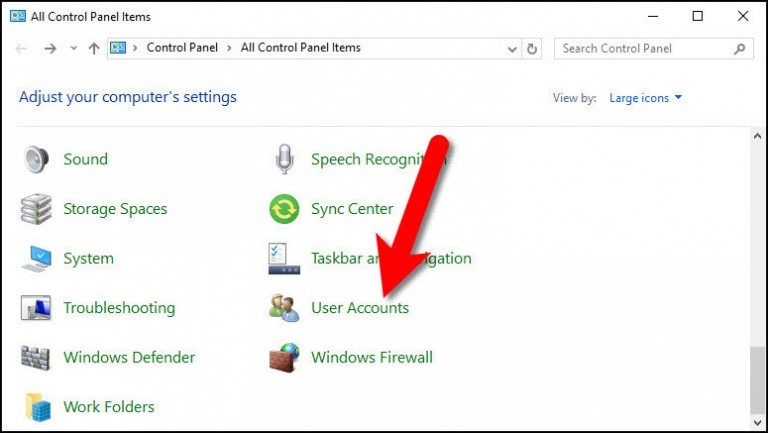
3. Click “Change Your Account Name” in the next window.

5. Now, you need to enter a new account name.

6. Click Rename to save the changes.
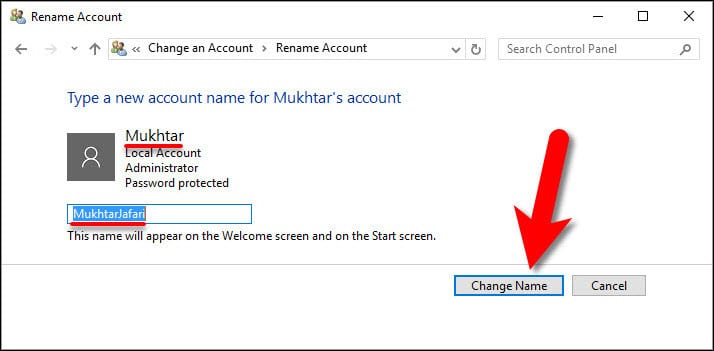
That’s it! You will now see the new name on the window screen when you log in and out.

Conclusion:

I hope this guide on Easy Ways to Change User Account Name in Windows 10 was helpful. If you know any better ways to Change the User Account Names in Windows 10, share them with our readers.


Previous Post

Unable to autohide the taskbar in Windows 11? Here’s how to fix it.

Next Post

Windows 11 Fixer: New Design and Useful Options

Ruby Singh

Ruby Singh

Next Post
Windows 11 Fixer: New Design and Useful Options

Windows 11 Fixer: New Design and Useful Options

Leave a Reply Cancel reply

Your email address will not be published. Required fields are marked *

No Result
View All Result

Recent Articles

  • Why Some Security Teams Are Looking Beyond VDI for Safe Remote Access
  • Specialized IT Solutions for Architecture Companies: Why Your Firm Needs Them
  • How to Stop Medical Bills From Piling Up After a Car Accident
  • Download Tiny10 ISO for Windows 10 (Complete Guide)
  • Download VMware Workstation Pro 25H2 (Windows | Linux): Direct Downloads
  • Download macOS Unlocker for VMware Workstation Pro 25H2 | Old Versions Available
  • Download Tiny11 25H2 ISO for Windows 11: Older Verions Available
  • How to Enable Intel VT-x or AMD-V On BIOS or UEFI Firmware
  • How to Dual Boot macOS Catalina & Windows 10 on PC
  • How to Install VMware Tools on Kali Linux
Facebook Twitter Youtube

Browse by Category

  • Android (15)
  • Discord (4)
  • Downloads (17)
  • Featured (8)
  • Internet (66)
  • iOS (16)
  • Linux (10)
  • Mac (151)
  • Virtual Machine (31)
  • VirtualBox (81)
  • VMware (67)
  • Windows (82)

Downloads

Download macOS DMG
Download macOS ISO
Download macOS VMDK
Download Windows ISO

GEEKrar

We are a team of skilled writers, editors and tech enthusiasts that help you how to get tech into work, pros and cons, explain hows and whys, hacks, and fixes of new modern tech.

© 2026 geekRAR.com

We use cookies on our website to give you the most relevant experience by remembering your preferences and repeat visits. By clicking “Accept”, you consent to the use of ALL the cookies.
Do not sell my personal information.
Cookie settingsACCEPT
Manage consent

Privacy Overview

This website uses cookies to improve your experience while you navigate through the website. Out of these, the cookies that are categorized as necessary are stored on your browser as they are essential for the working of basic functionalities of the website. We also use third-party cookies that help us analyze and understand how you use this website. These cookies will be stored in your browser only with your consent. You also have the option to opt-out of these cookies. But opting out of some of these cookies may affect your browsing experience.
Necessary
Always Enabled
Necessary cookies are absolutely essential for the website to function properly. This category only includes cookies that ensures basic functionalities and security features of the website. These cookies do not store any personal information.
Non-necessary
Any cookies that may not be particularly necessary for the website to function and is used specifically to collect user personal data via analytics, ads, other embedded contents are termed as non-necessary cookies. It is mandatory to procure user consent prior to running these cookies on your website.
SAVE & ACCEPT
No Result
View All Result

© 2026 geekRAR.com

Go to mobile version